
UI Overview
Introduction
Cue Pro consists of the Main Window and several associated windows which can optionally be kept open simultaneously. The Main Window layout varies depending on the operational mode selected. In Media Mode, Cue Pro provides a full-featured interface with video playback, transport controls, and media management. In Pro Tools Integrated Mode, the interface is streamlined as video playback and transport are handled by Pro Tools®.
Associated Windows (both modes):
- Preferences / Settings
- Event List
- Import Script
Additional Windows (Media Mode only):
- Audio Settings
- DAW Track Settings
For information on switching between operational modes, refer to Operational Modes.
Main Window in Media Mode
In Media Mode, the Main Window consists of four sections:
Tab Section
The left sidebar contains five setting panes: MEDIA, TIMELINES, PROJECT, DAW, and PROPERTIES. These panes provide access to cue numbering schemes, ADR cue user reasons, Cue Pro Connect data management, timeline selection, project settings, DAW configuration, and event properties.
Internal Video Player Section
The internal video player displays the current video with any active overlays. This section is only present in Media Mode, as Pro Tools® handles video display in Pro Tools Integrated Mode.
Controller Bar
Contains the main Timecode counter box, Selection in and out counter boxes, Pre-Roll and Post-Roll controls, Transport Controls, Sync, Video Reference, Incoming Timecode counter, Incoming frame-rate, Dolby Atmos Audio delay compensation, Dual Frame, Mini Player, Fullscreen, Edit Mode, and CueLink controls.
Hovering the mouse above a button or icon shows the Mouse-Over help window containing the name and function, with the keyboard shortcut shown in parentheses where relevant.
Timeline Section
Displays the contents of the currently active Timeline, including Streamer, Marker, and Character tracks for visual events, as well as video and audio tracks.
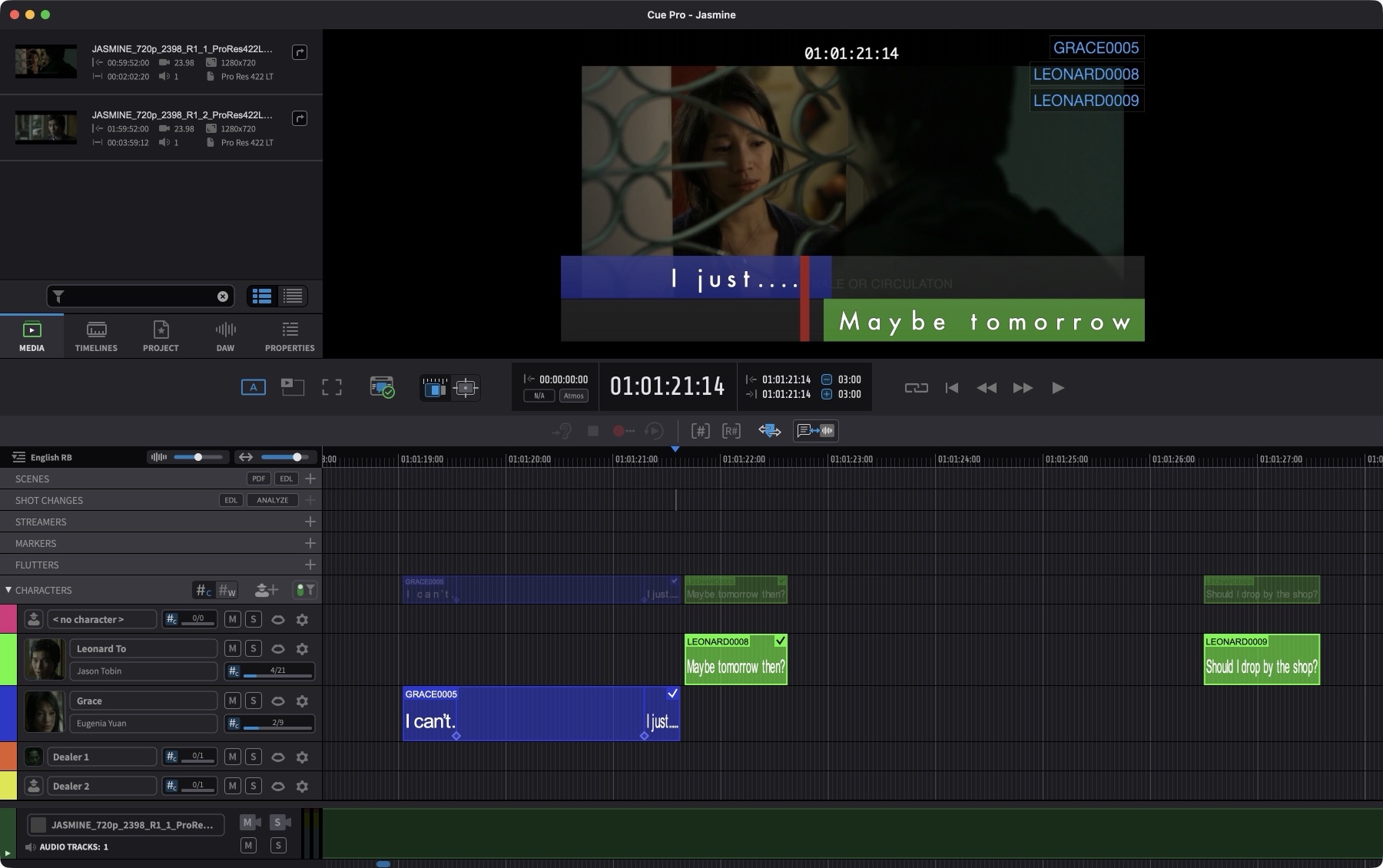
The window can be resized vertically to show more or less of the Timeline section by clicking on the top edge of the Controller Bar and dragging up or down.
Enable Main Window Always on Top from the Window menu to ensure the Main Window remains visible while all other windows (including those from other applications) stay behind.
Main Window in Pro Tools Integrated Mode
In Pro Tools Integrated Mode, the Main Window is streamlined as video playback and transport controls are managed by Pro Tools®. The interface consists of two sections:
Controller Bar
Displays the Pro Tools® connection status (showing the connected Pro Tools® version), main Timecode counter, Selection in and out counter boxes, Pre-Roll and Post-Roll controls, Audio Guide Track selector, Edit Mode, and CueLink controls. Transport controls are not present as playback is controlled from Pro Tools®.
Timeline Section
Displays the contents of the currently active Timeline, including Streamer, Marker, and Character tracks for visual events. Video and audio tracks are not shown as media resides in Pro Tools®.
Note: The Tab Section and Internal Video Player are not available in Pro Tools Integrated Mode. Project data is stored within the Cue Pro Connect plug-in in the Pro Tools® session rather than in separate project files.
Preferences / Settings
Click on the Cue Pro menu → Preferences / Settings or use the hotkey combination Shift & , to show the Preferences / Settings window.
The main Preferences / Settings are configured here. The available tabs vary depending on the operational mode.
Tabs available in both modes:
- APP MODE - Switch between Media Mode and Pro Tools Integrated Mode
- DISPLAY - Video device configuration and output settings
- OVERLAYS - Overlay appearance and behaviour settings
- MISC. - General application settings
Additional tabs in Media Mode:
- SYNC - DAW synchronisation settings
- ADR REC - Recording control settings (Cue Pro Studio only)
- TRIGGER - MIDI trigger configuration
Audio Settings (Media Mode Only)
Click on the Window menu → Audio Settings or use the hotkey combination Shift & A to show the Audio Settings window.
Audio routing and playback settings are configured here. This window is only available in Media Mode, as audio is managed by Pro Tools® in Pro Tools Integrated Mode.
Event List
Click on the Window menu → Event List or use the hotkey combination Shift & L to show the Event List window.
Visual Events can be added and listed in detail for editing or recording. The Event List provides a comprehensive view of all events with their properties displayed in columns.
Enable Event List Window Always on Top from the Window menu to ensure the Event List remains visible while all other windows (including those from other applications) stay behind.
Import Script
The Import Script window is accessed from File → Import Events and selecting a supported file to import. Compatible file types are listed in the Importing ADR Cues chapter.
This window allows for an automated or semi-automated script import process, such as from a shooting script, a dialogue list, or a spotted ADR database file.
Mini Player (Media Mode Only)
Click on the Toggle Mini Player Mode icon in the Controller Bar to minimise the Main Window into a smaller resizable video player with a floating control panel containing basic Timecode display, Sync, and Transport controls.
The Mini Player window can be used as a floating video window, or set to cover the entire screen by using the green maximise window button at the top left. The current position and size of the Mini Player window will always be stored and recalled.
Note: The Mini Player window is entirely separate from Fullscreen mode. With Mini Player maximised and Fullscreen set to another screen, this allows for two simultaneous fullscreen internal video displays.
Enable Mini Player Window Always on Top from the Window menu to ensure the Mini Player window remains visible while all other windows (including those from other applications) stay behind.