
Reconforming
Introduction
When a picture is re-cut during production, ADR cue events need to move with the new edit to stay in sync. Cue Pro supports reconforming through The Cargo Cult's Matchbox 2 software, which can reconform both the audio in Pro Tools® and the cue events directly in Cue Pro in a single operation.
All existing cue data - text, Done status, TBW flags, Anchors, Rec Track assignments, Notes, Engineering Notes, and all other fields - is preserved during the reconform. Only the timecode positions change. After the reconform, each cue receives a Reconf State value indicating how it was affected, making it straightforward to review and clean up any cues that need attention.
Running a Reconform
First, ensure the active Timeline in Cue Pro contains the events to be reconformed. There is no need to duplicate the Timeline - Cue Pro creates a duplicate automatically during the reconform.
Next, create a cut comparison project in Matchbox 2. The Cargo Cult provides detailed guides on creating cut comparison projects in the support section of their website, as well as directions for separately reconforming the audio in Pro Tools®: https://www.thecargocult.nz/support/
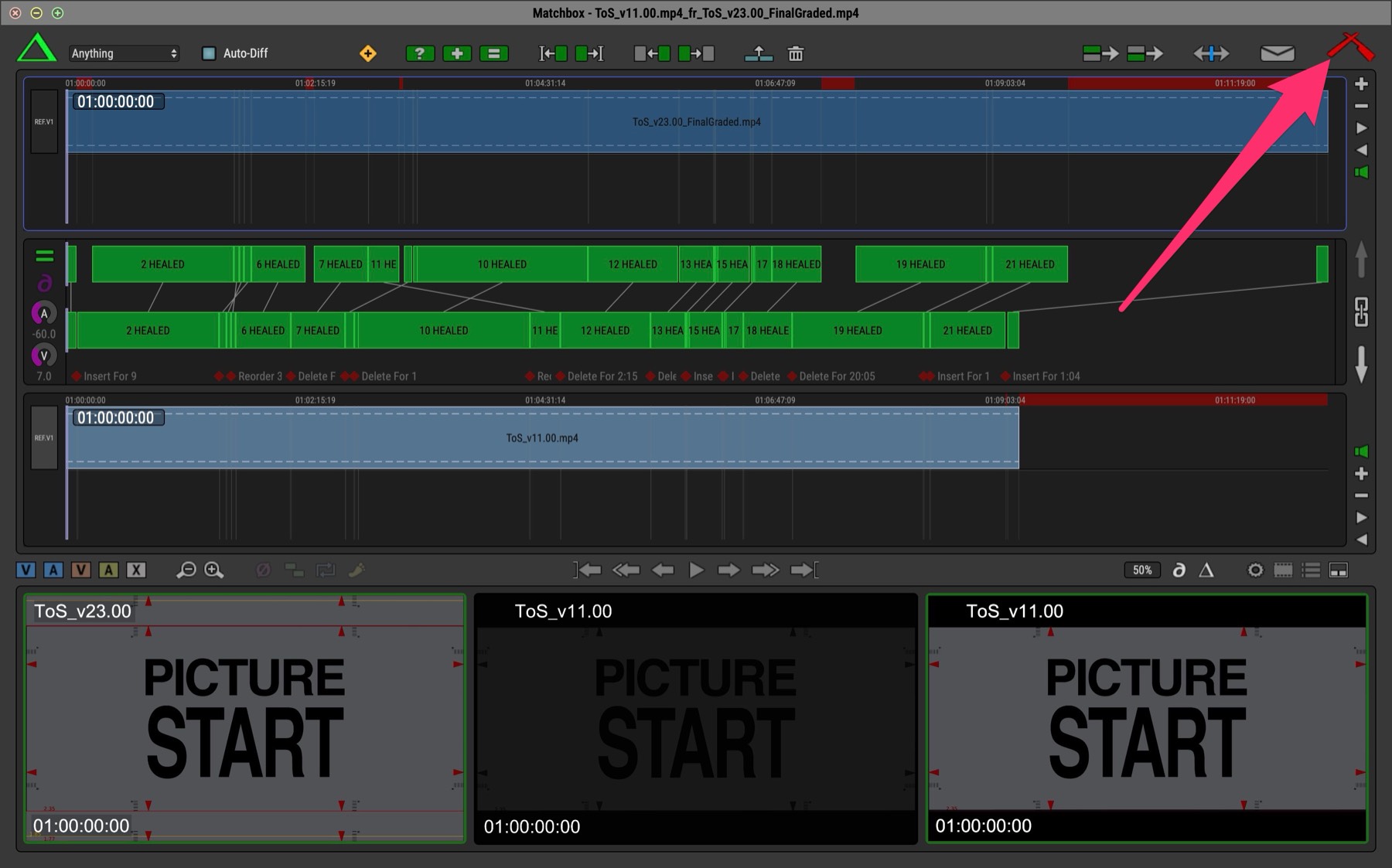
Once the cut comparison is set up in Matchbox 2, click the Launch Reconform button in the top right of the window.
In the Run Reconform window that appears, select Cue Pro / ADR Master as the Reconform Type.
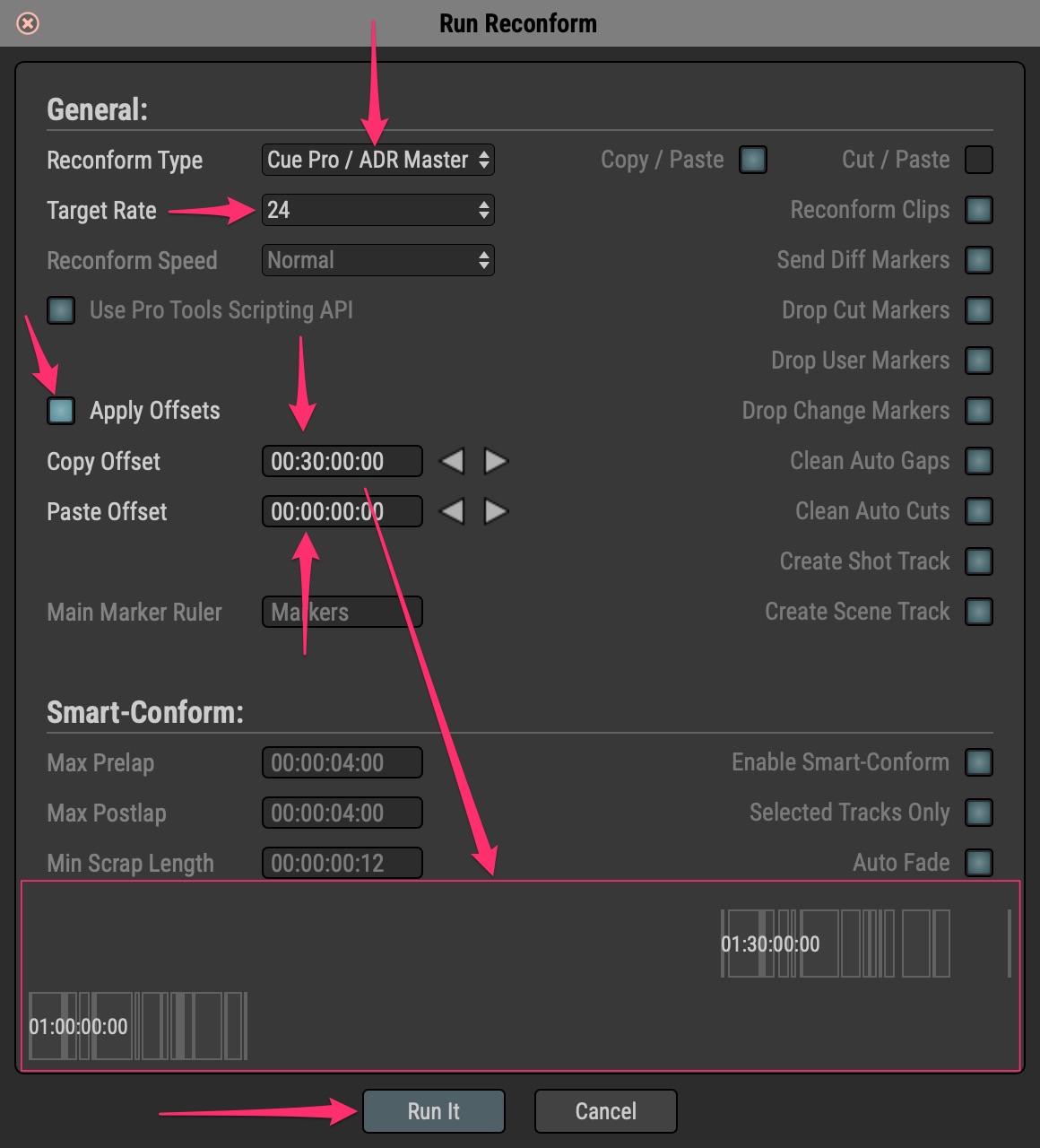
Confirm that the Target Rate matches the frame rate of the Cue Pro Timeline.
Enable the Apply Offsets field, then set the Copy Offset and Paste Offset values. The Copy Offset determines where the old-cut cues are temporarily moved to - this must be an area of the Timeline that is currently free of cues. The Paste Offset determines where the reconformed cues are placed back. In most cases the Paste Offset can be set to 00:00:00:00, meaning the reconformed cues return to the same timecode hour as before.
For example, when working with Reels at every hour, a Copy Offset of 00:30:00:00 would move Reel 1 cues from 01:00:00:00 to 01:30:00:00, and Reel 2 from 02:00:00:00 to 02:30:00:00. For a Joined Master - for example a 100-minute programme starting at 10:00:00:00 - a Copy Offset of 02:00:00:00 would move the old cues to 12:00:00:00. Negative values can also be entered.
The preview section at the bottom of the window shows a visual representation of these values relative to the matches found in the cut comparison - Copy Offset on top and Paste Offset below.
Click the Run It button.
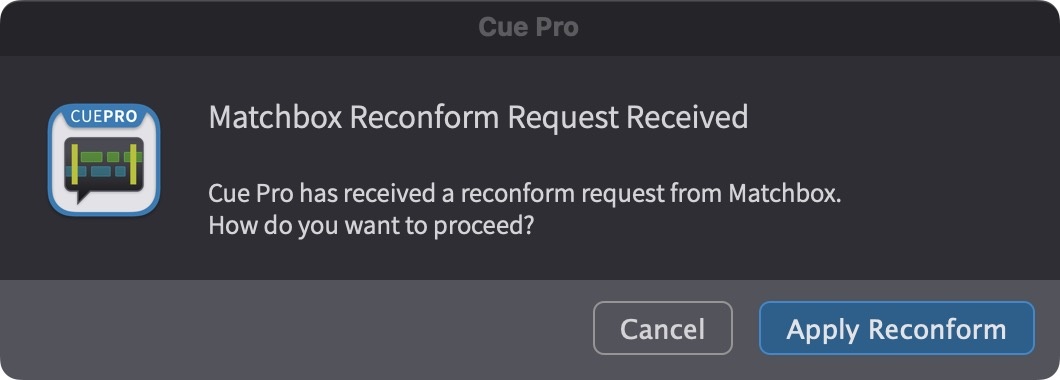
A message window appears in Cue Pro asking whether to allow the reconform. Click the Apply Reconform button.
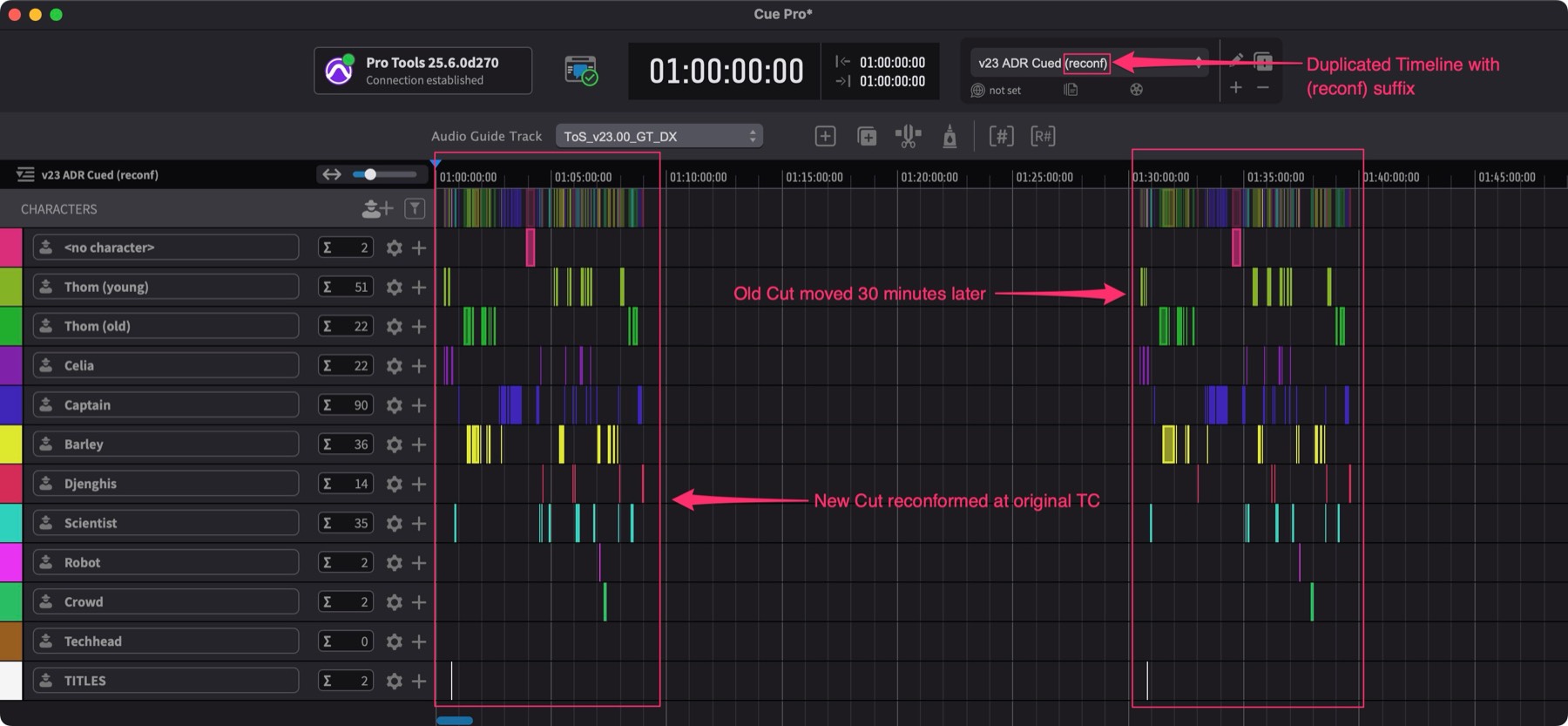
Cue Pro instantly creates a duplicate Timeline, moves the old-cut cues to the chosen offset position, and reconforms the cues from the old cut back to their new relative positions in the new cut at the chosen timecode hour.
Reviewing Reconformed Cues
After the reconform, each cue's Reconf State column in the Event List is updated to indicate how it was affected. The four possible values are:
None - the cue was not affected by a reconform operation (default state for all cues before any reconform is run).
Conformed - the cue was successfully matched and repositioned to align with the new edit. No further action is needed for these cues.
Split - the cue was split during the reconform because the corresponding picture edit was cut at a point within the cue's original range. The cue text may need updating to reflect the new split point - for example, if a line of dialogue was divided across two cues, the text in each half should be adjusted to match what is now on screen. Once the text has been reviewed and corrected, change the Reconf State to Conformed.
Respot - the cue could not be automatically matched to a position in the new edit. This happens when the source material referenced by the EDL has changed, so Matchbox cannot find a corresponding shot in the new cut. The most common cause is the picture editor choosing a different take of the same scene, but it also occurs when visual effects shots are updated with re-rendered source files. In both cases the content on screen may be the same or very similar, but the different source file and timecodes cause the EDL comparison to treat the shot as entirely new material. To resolve these cues, locate the original cue in the old-cut section of the Timeline and compare it against the corresponding position in the new cut. If the dialogue is the same, copy the cue from the old-cut section and place it manually at the correct position in the new cut, then change the Reconf State to Conformed. If the wording has changed slightly with the new take, edit the cue text to match before confirming. If the line has been dropped from the edit entirely, make a note and consider deactivating or removing the cue.
Note: If a large number of cues are marked as Respot due to source media changes rather than genuine editorial changes, it may be more efficient to return to the Matchbox 2 project and refine the cut comparison before running the reconform again - for example, by using picture comparison rather than relying solely on EDLs. See the Matchbox 2 documentation for details on alternative comparison methods.
To efficiently work through the reconformed cues, sort or filter the Event List by the Reconf State column to focus on Split and Respot cues first. The goal is to review each affected cue and set its state to Conformed once it has been verified, until all cues in the list show a Reconf State of Conformed.
Navigating Between Old and New Cuts
To compare any position in the reconformed section of the Timeline against the same relative position in the old-cut section, use the navigation controls in Matchbox 2. In Matchbox 2, go to Preferences / Settings → Reconform and set the Reconform Type to Pro Tools. Then use the left and right arrow buttons directly to the left of the Launch Reconform button to jump between the old-cut and new-cut positions in Pro Tools®. This makes it straightforward to audition the same moment in both cuts while cleaning up the reconformed events.
Note: DAW Control Mode must be set to Modern for this navigation to work.
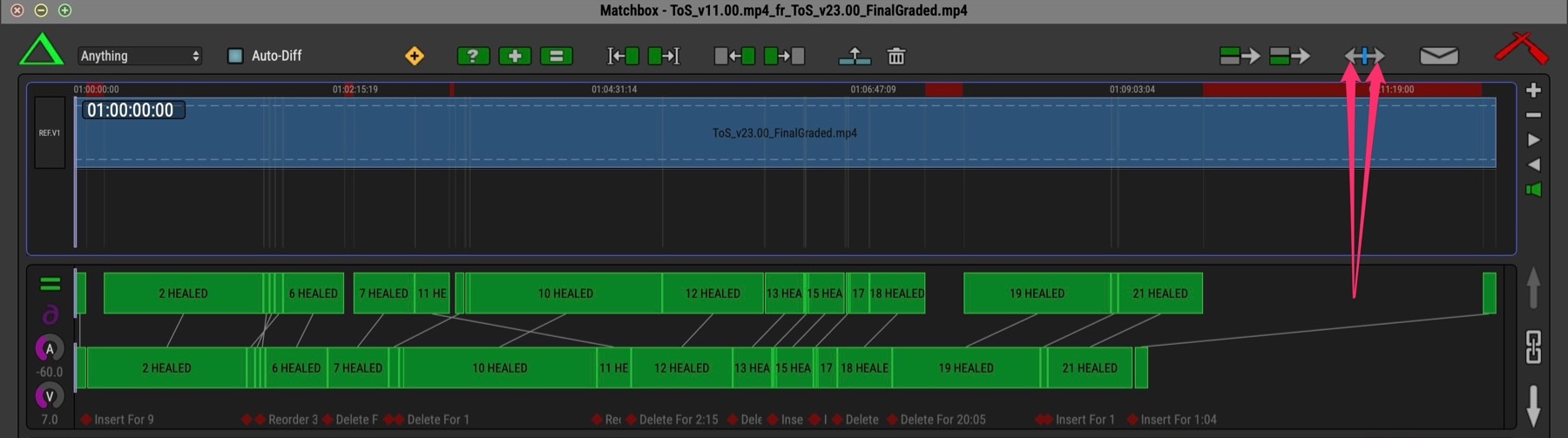
These navigation controls can also be accessed through keyboard shortcuts in Matchbox 2:
- Locate DAW to Old Playhead: Shift & D
- Locate DAW to New Playhead: Option & D
- Jump DAW between Old and New: Option & Command & Z
Removing the Old-Cut Cues
Once all cues on the reconformed Timeline show a Reconf State of Conformed, the old-cut cues should be removed. Leaving them in place can cause confusion when exporting ADR cue sheets for recording, as the exported sheets would include both the current and obsolete cues.
Before removing the old-cut cues, consider whether to keep a backup. Duplicating the Timeline at this stage preserves a copy of both the reconformed and old-cut cues in case it is necessary to return to the old cut later. If all changes have been reviewed and confirmed, the backup may not be needed.
To remove the old-cut cues, navigate to the old-cut section of the Timeline, select the cues, and delete them.