
Installation
Downloading & Installation
Cue Pro Edit and Cue Pro Studio use the same installer file. The authorisation type determines which version feature-set is available.
Download the software from the Non-Lethal Applications website at:
macOS: https://non-lethal-applications.com/nlalib/download.php?type=cp26mac
Windows: https://non-lethal-applications.com/nlalib/download.php?type=cp26win
To install Cue Pro on macOS, double-click the downloaded Cue Pro .pkg file and go through the installation process. On Windows, run the downloaded installer and follow the on-screen prompts.
Cue Pro comes bundled with the Cue Pro Connect AAX plug-in, so there's no need for separate downloads or setup. This means sessions created in Pro Tools that contain cues stored in the Cue Pro Connect plug-in will automatically be recognised by Cue Pro - enabling seamless cue import.
Demo Mode
If no local or iLok authorisation is found on the computer, the app will launch in demo mode, which will run for 14 days. The demo enables all the features of the Studio version - but there are some limitations such as a watermark overlay, a maximum number of cues per project, and a maximum video export duration.
If the demo period has expired, it can't be launched anymore, unless a perpetual license or a monthly or annual subscription are purchased. Press the Quit button when the expired demo message appears.
Software Updates
Minor software updates are periodically released with bug fixes & performance improvements. Cue Pro includes a built-in update system that checks for new versions automatically and will notify when a new version is available on launch.
Update settings are located in Preferences / Settings → MISC tab, under the UPDATES section. This displays the current installed version and indicates whether the software is up to date.
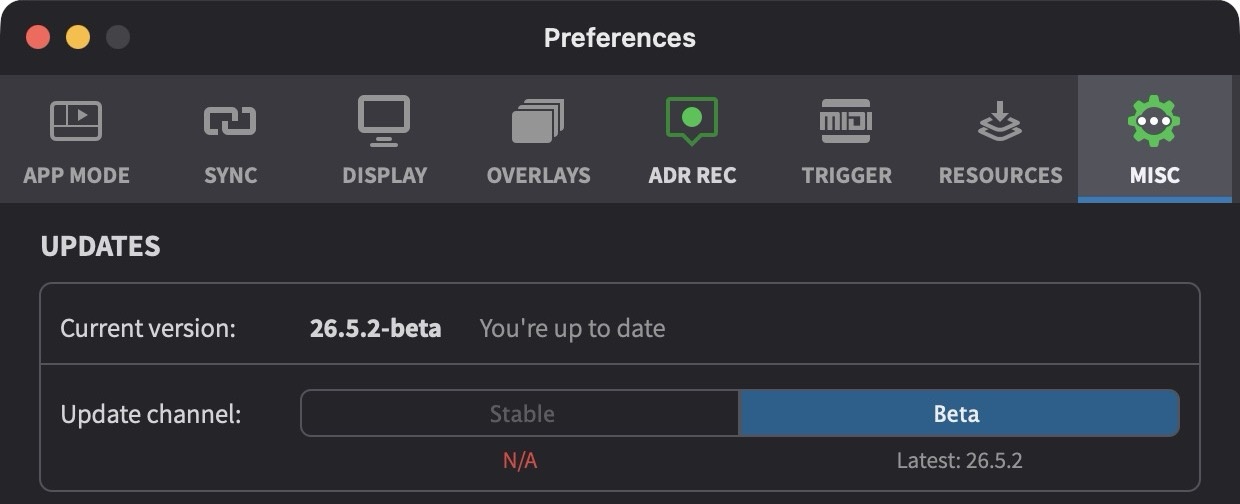
The Update channel selector allows choosing between two release tracks:
- Stable - Production-ready releases recommended for most workflows
- Beta - Early access to new features for testing purposes
The latest available version for each channel is displayed below the selector. To manually check for updates, go to Cue Pro → Check For Updates….
Rolling Back To A Previous Version
Although we always do our best to thoroughly test every software update released, it is still possible that an update introduces irregular behaviour, or issues to the workflow. In that case, it is suggested to quickly roll back to an older version of the software to avoid any downtime.
After logging into our website using the My Account section on the top right, the My Licenses page will be displayed - which shows all purchased licenses, as well as running or cancelled subscriptions.
Underneath each licensed product is a button labeled Download Links. Click it to show a list of older downloads for the product with direct download links.
Please get in touch through support@non-lethal-applications.com so we can have a look at the issue being seen with the most recent version of the software. Thank you!