
Licensing
Introduction
Cue Pro offers two licensing models: perpetual licenses and subscription licenses. Both authorise the software on one computer at a time, but differ in cost structure, portability, and how updates are delivered. Perpetual licenses include a renewable Support Plan for ongoing updates - see the Support Plans section below. This chapter covers how to choose the right license type, activate and manage each type, and work across multiple computers or studios.
Choosing the Right License Type
Perpetual licenses are a one-time purchase using the industry-standard PACE / iLok system. They offer offline use, iLok portability, and Cloud Sessions. Each includes a 12-month Support Plan for updates, renewable at any time.
Subscription licenses use Non-Lethal Applications' own serial number system and offer a lower entry cost. They can be used offline between renewal periods. Subscriptions are available as month-to-month or annual plans.
The table below summarises the key differences:
| PERPETUAL LICENSE | SUBSCRIPTION LICENSE | |
|---|---|---|
| Cost | One-time purchase (+ optional Support Plan renewal) | Monthly or annual payments |
| Licensing system | PACE / iLok | NLA (serial number) |
| Updates | Included while Support Plan is active | Included while subscription is active |
| Offline use | Yes (iLok or computer activation) | Yes - internet required only at activation and renewal |
| iLok compatible | Yes | No |
| iLok Cloud Sessions | Yes | No |
| Moving between computers | Plug in iLok, or open Cloud Session, or deactivate/reactivate | Revoke and reactivate |
| After expiry | Software continues to work with last available version | Software returns to demo mode |
License Usage - One Computer at a Time
Regardless of the license type, each license authorises one computer at a time. The software can be installed on as many computers as needed, but only one of those installations can run as a licensed copy at any given time. Launching the software on an unlicensed computer will start it in demo mode.
For perpetual license holders, a physical iLok makes switching between studios effortless - just plug it in and go. iLok Cloud Sessions offer similar portability for users who are happy to be online. See the sections Benefits of Using iLok and Using iLok Cloud Sessions below.
With a subscription license, switching between computers is a quick one-click process - revoke on one machine, activate on the other. The last-used serial number is remembered, so there is no need to re-enter it each time. See the section Moving a Subscription License to another Computer below.
Subscription Licenses
Activating a Subscription License
Subscription licenses use Non-Lethal Applications' own licensing system. PACE iLok License Manager is not required and will not work with subscription licenses. Subscriptions cannot be stored on an iLok.
When signing up for a subscription, a serial number will be received via email after purchase - this is used to activate Cue Pro directly.
When launching Cue Pro with no perpetual license present, the Cue Pro Activation window will be presented. Click the Enter Serial Number button and enter the serial number.
It is recommended to use Copy & Paste to avoid typos.
Click Activate to start the license activation procedure. This step requires an active internet connection.
Internet Requirements
A subscription license requires an active internet connection when the license is first activated and when it is due for renewal. Between these events, the software can be used offline without any connectivity requirement.
Note: This makes subscription licenses suitable for studio environments with restricted internet access. The software does not need to check in on every launch - only when the subscription period renews. If the subscription expires and is not renewed, Cue Pro will return to demo mode.
Moving a Subscription License to another Computer
A subscription license can be moved between computers at any time. This requires revoking the license on the current computer first, then activating it on the destination computer. An active internet connection is required on both machines.
To revoke a license, open the Licenses window (accessible through Cue Pro → Licenses) and click the Revoke button. This will de-authorise the current computer and the software will return to demo mode.
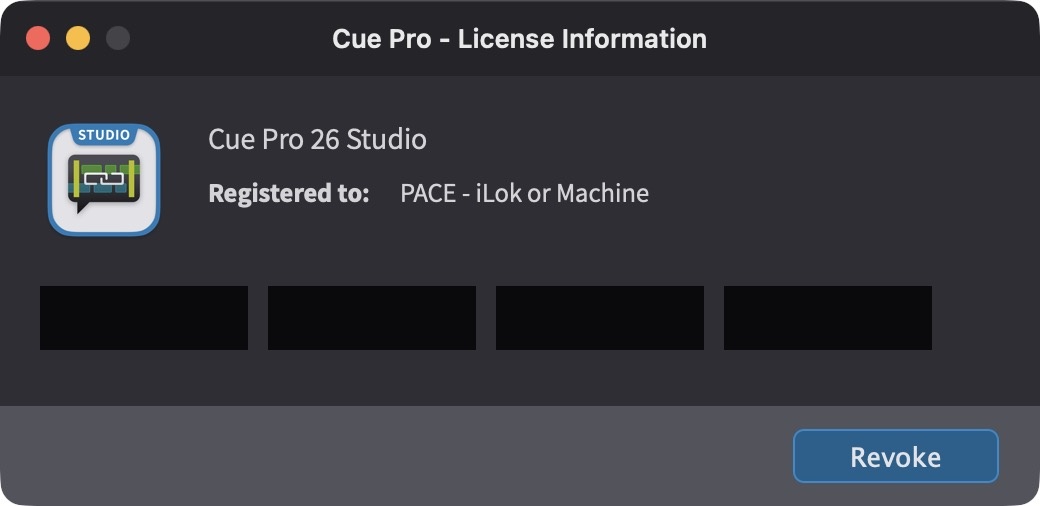
On the destination computer, launch Cue Pro and activate the license using the same serial number, following the activation steps described above.
Note: If a license needs to be revoked but the original computer is not accessible - for example, due to hardware failure - contact support@non-lethal-applications.com for assistance with resetting the license.
Subscription Plans
Subscriptions are available in two billing periods: month-to-month and annual. Both auto-renew unless cancelled, and both can be cancelled at any time.
Month-to-month subscriptions renew each month at the standard monthly rate. Annual subscriptions offer a reduced rate and are billed as a single upfront payment for 12 months. A reminder email is sent 30 days before each annual renewal date.
Note: Subscription payments do not accumulate toward the purchase of a perpetual license. These are separate licensing models.
Cancelling a Subscription
To cancel a subscription, log in at My Account on the Non-Lethal Applications website. The My Licenses page will be shown. Find the subscription license in the license list and click the Cancel subscription button.
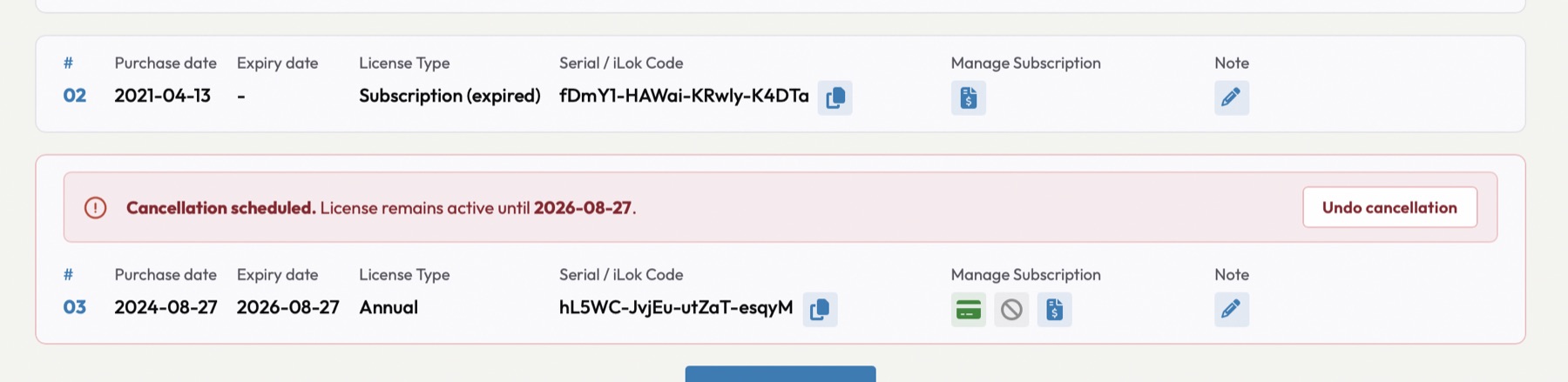
A confirmation prompt will appear. Once confirmed, the page will reload and the My Licenses page will show the effective cancellation date.
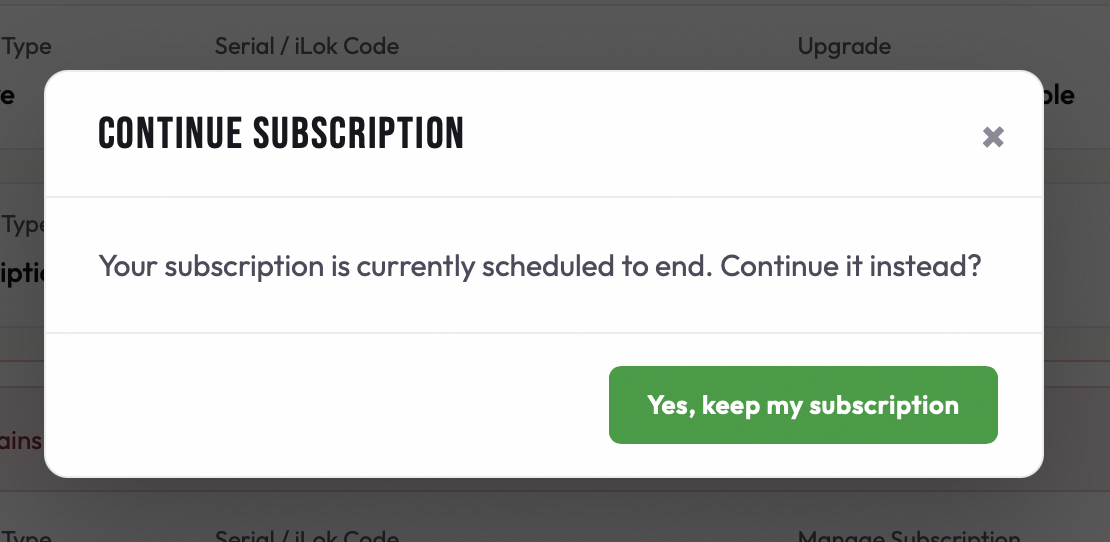
To undo a pending cancellation before the end date, click Undo cancellation on the same page.
Perpetual Licenses
Support Plans
Every new perpetual license includes a 12-month Support Plan. While a Support Plan is active, all software updates are included - new features, refinements, and bug fixes alike. Direct email support from Non-Lethal Applications is also included for installation, licensing, configuration, and troubleshooting.
When a Support Plan expires, everything paid for is kept indefinitely: the version of Cue Pro installed at the time of expiry, plus every update released while the plan was active. The software does not stop working - it simply stops receiving new updates.
To continue receiving updates released after a Support Plan expires, renew the plan. Renewals run for another 12 months. Early renewals are also possible - renewing before expiry extends the existing plan by 12 months from the current expiry date. An internet connection is required when renewing in order to update the license with the new expiry date.
Note: There are no paid major-version upgrades. Updates are delivered continuously, and the Support Plan determines which updates are available. Version numbers continue to increment (for example, future releases may be named Cue Pro 27, Cue Pro 28, and so on), but these reflect when a release was made - they are not gated behind a separate paid upgrade.
Benefits of Using iLok
Cue Pro uses PACE's iLok system for perpetual license activation. Within iLok License Manager, the license can be authorised to an iLok, directly to a computer, or to the cloud via a Cloud Session.
An iLok is not required - activating directly on a computer or using Cloud Sessions are both valid alternatives. However, for users who work at multiple studios, an iLok remains the most convenient option: plug it in and go, no internet or deactivation steps needed.
Pre-requisites for Activation - iLok & NLA Accounts
If an iLok account does not already exist, go to www.iLok.com to create one.
Download and install iLok License Manager. Launch it, and when prompted, log in with the iLok account details.
To authorise an iLok, connect it and - if not already done - add it to the iLok account (refer to PACE's iLok instructions to do this).
If a Non-Lethal Applications account does not already exist, create one at:
https://non-lethal-applications.com/register
Purchasing a Perpetual License
There are two options for purchasing a perpetual license for Cue Pro:
- Directly from the online Non-Lethal Applications Store
- Through a preferred Dealer or Reseller
To purchase a license directly, visit the Cue Pro product page:
https://www.non-lethal-applications.com/cue-pro-26
Upgrade and crossgrade pricing is available on the My Licenses page after logging into the NLA account, personalised based on existing licenses.
Activating a Perpetual License
Perpetual license activation is handled through the Non-Lethal Applications website. After purchasing a license, the activation process connects the license to an iLok account so the software can be authorised.
When a perpetual license is purchased directly from the Non-Lethal Applications store, the iLok account username is requested as part of the checkout process (if it has not already been set in the NLA account). The license is then deposited directly into the iLok account - it will appear in iLok License Manager within a few seconds.
The iLok username only needs to be entered once. It is stored at the account level, so all future license purchases and deposits use the same iLok account automatically.
For licenses purchased through a reseller, a pre-activation code will be provided. To activate, log in to the NLA account and go to My Licenses. Enter the pre-activation code there, and an iLok account username prompt will appear if one has not already been set. The license will then be deposited into the iLok account.
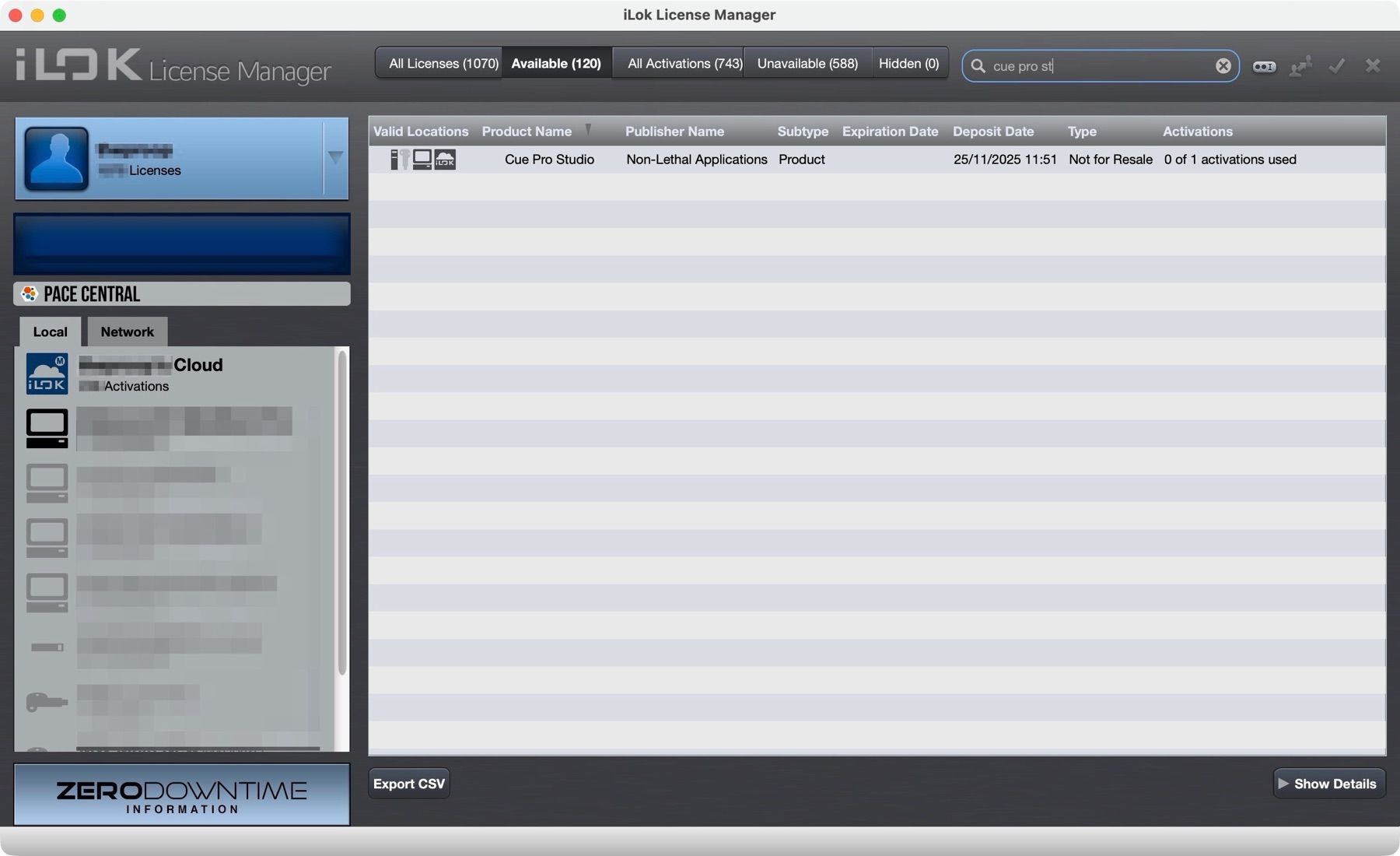
Once the license appears in the Available tab of iLok License Manager, it can be transferred to an iLok, a computer, or the cloud.
iLok Cloud Automatic Mode
iLok License Manager's iLok Cloud can operate in one of two modes: Automatic Mode and Managed Mode. In Automatic Mode, all cloud-enabled licenses are automatically activated to the iLok Cloud when a Cloud Session is opened. This is a common source of confusion for new users — a license may have been deposited successfully, but it ends up in the iLok Cloud rather than in the Available tab. Without a Cloud Session open on the machine, Cue Pro cannot see the license and will present the Activation window as if no license exists.
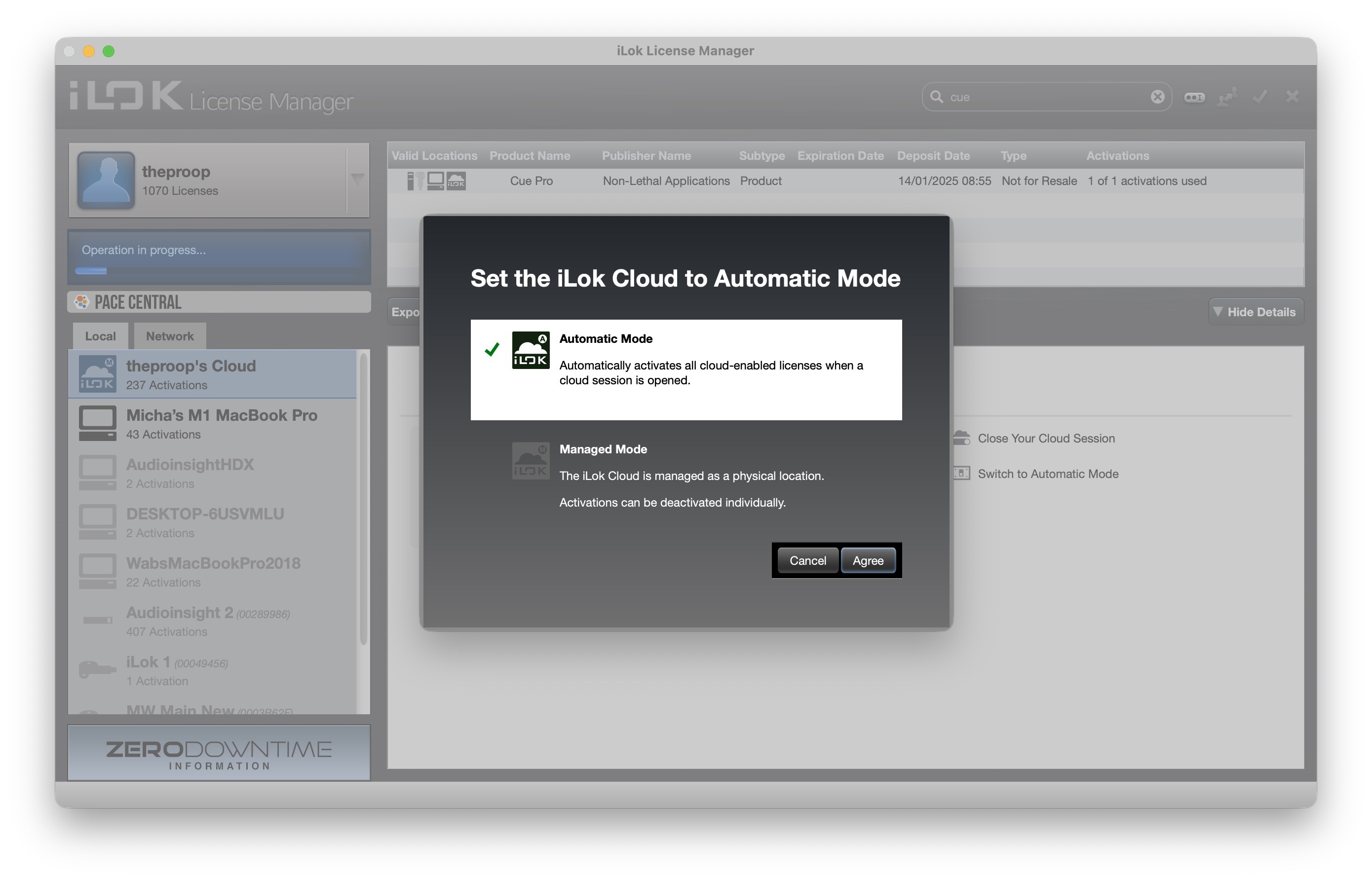
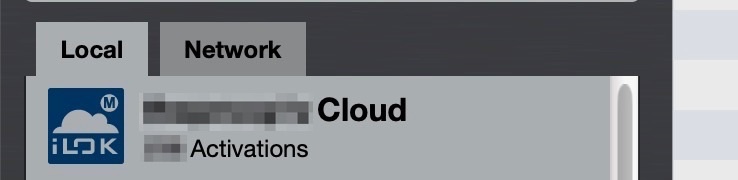
If a newly purchased license does not appear in the Available tab after activation, check the Cloud section on the left-hand side of iLok License Manager. If the license is there, either open a Cloud Session to use it (see Using iLok Cloud Sessions below), or deactivate it from the Cloud and transfer it to a preferred location such as an iLok USB dongle or the local computer.
To prevent this from happening with future license deposits, switch the iLok Cloud to Managed Mode. Select the Cloud in the left-hand sidebar of iLok License Manager and click Switch to Managed Mode. In Managed Mode, the iLok Cloud is treated as a physical location where activations can be managed individually, giving full control over where each license is stored.
Authorising / Transferring the PACE License to an iLok or Computer
The final step in the activation process is to choose where to store the PACE authorisation. There are three options:
- iLok USB dongle - Ideal for users who work at multiple locations. Carry the license between studios on a single device. No internet connection required.
- Computer - Activates the license directly on a specific machine. No internet connection required after activation.
- iLok Cloud - Access the license from any internet-connected computer via a Cloud Session. See the section Using iLok Cloud Sessions below.
In iLok License Manager, click on the Available tab at the top, and find the Cue Pro Edit or Cue Pro Studio authorisation in the list.
Authorisations can also be found using the search bar at the top right.
To move the authorisation to the computer, or one of the inserted iLoks shown on the left, simply drag the authorisation by clicking on the name and dragging it to the chosen authorisation destination on the left.
Alternatively, control-click the chosen authorisation, and in the list that appears, choose the activate option. A window will appear offering the possible authorisation destinations. Select the desired destination and click the Activate button.
To check that the authorisation transferred correctly, select the chosen authorised destination on the left, and see that the authorisation is listed.
That's it - the setup is complete. Cue Pro can now be launched and will run authorised.
Note: Where there are multiple Cue Pro licenses present on an iLok, or on a system (for example Cue Pro Edit and Cue Pro Studio), the highest available license is used.
Using iLok Cloud Sessions
PACE's iLok Cloud Sessions provide a convenient way to use a perpetual license across multiple computers without needing a physical iLok or manually transferring the license each time. This is particularly useful for users who work at more than one studio or facility where an internet connection is available.
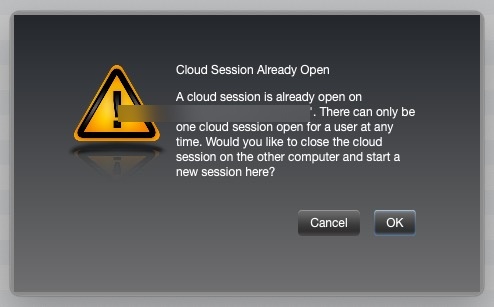
With a Cloud Session, the license is stored in the iLok cloud account rather than on a specific computer or iLok. To use the software, open a Cloud Session from iLok License Manager by going to File → Open Your Cloud Session. Only one Cloud Session can be active per iLok account at a time. If a session is already open on another computer, iLok License Manager will display a prompt identifying the computer where the session is currently active, and ask whether to close that session and open a new one on the current computer. Click OK to proceed.
To set up a Cloud Session, open iLok License Manager and ensure the license is in the account's Available list (deactivate it from its current location first if needed). Then, transfer the license to the Cloud destination shown on the left-hand side of iLok License Manager. Once the license is in the cloud, select it and choose Open Cloud Session to begin using it.
Note: An active internet connection is required to open and maintain a Cloud Session. If the connection is lost, the session will remain active for a short grace period before the license is released. For guaranteed offline use, activating the license on a physical iLok or directly on the computer is recommended instead.
Moving a PACE License
To move a PACE authorisation between two iLoks or computers, deactivate the PACE license within iLok License Manager by finding it in the list, control-clicking it, and choosing Deactivate from the list that appears.
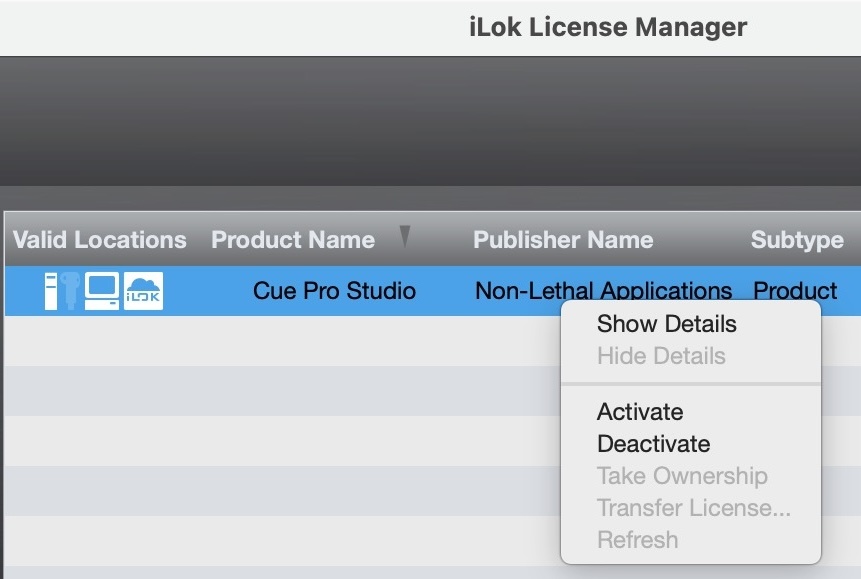
This will de-authorise the current iLok or computer and return the asset to the iLok account's Available authorisations list. From there it can be moved to another destination as per the instructions in the previous section, Authorising / Transferring the PACE License to an iLok or Computer.
Note: When an iLok Cloud Session is being used instead, manual deactivation is not necessary. A new Cloud Session can be opened on the desired computer via File → Open Your Cloud Session in iLok License Manager. If the session is still open on another computer, a prompt will appear offering to close it and open a new session on the current computer.
Zero Downtime (ZDT) & Theft & Loss Coverage (TLC)
PACE offers Zero Downtime (ZDT) - a paid annual coverage plan that acts as insurance for iLok USB dongles. If a covered iLok is lost, stolen, or broken, PACE will issue temporary replacement licenses immediately, allowing work to continue while a replacement iLok is shipped.
ZDT includes Theft & Loss Coverage (TLC) - a feature that enables PACE to issue permanent replacement licenses for a lost or stolen iLok without needing to contact each individual software developer. TLC is included free with a ZDT subscription but must be enabled before the iLok is lost or stolen.
However, when TLC is enabled, the iLok must go online at least once every 90 days for a refresh operation. PACE describe this requirement as follows:
"If the TLC option is enabled, the iLok will need to be seen by our server at least once every 90 days for a Refresh operation. This Refresh enables the licenses to continue working for an additional 90 days. If the iLok is not seen by our server by the end of the Refresh period, the licenses on it will cease to authorize the software. Using iLok License Manager to do the Refresh operation will immediately reinstate the licenses." - PACE
Note: The 90-day refresh requirement only applies to iLok USB dongles with TLC enabled. Licenses activated directly on a computer, or on an iLok without ZDT/TLC, do not require periodic online verification. For environments where the computer must remain completely disconnected from the internet for extended periods, either avoid enabling TLC on the iLok, or plan to connect briefly every 90 days to complete the refresh.
Important: Synchronising an iLok in iLok License Manager is not the same as refreshing TLC. Synchronisation updates the iLok's system information and firmware. A TLC refresh is a separate verification process that confirms licenses are still eligible for Theft & Loss Coverage. Both may happen when iLok License Manager goes online, but they serve different purposes.
Note: ZDT and TLC are managed through the PACE website.
PACE Network Licenses
Cue Pro supports PACE Network Licenses (also known as floating licenses), which allow multiple users within a local area network (LAN) to share a limited number of software licenses concurrently. This licensing model is ideal for studios, educational institutions, and facilities where multiple users need access to Cue Pro at different times.
Important: PACE Network Licenses are not available through the product page. Please contact Non-Lethal Applications directly at support@non-lethal-applications.com to order network licenses.
How Network Licenses Work
Network licenses are managed by a centralised license server running on a machine within the network. When Cue Pro is launched, the software checks out a license from the server. When the application is closed, the license is returned to the server and becomes available for other users.
Setting Up Network Licenses
Setting up network licenses requires a server license and an iLok to store the licenses. Server licenses can be purchased from Non-Lethal Applications or from any other vendor that supplies network licenses.
To set up network licenses, first obtain a Server License. If one is not already available, contact support@non-lethal-applications.com to order. An iLok USB device is also required to store the licenses on the server.
Next, install the iLok License Server software on a dedicated machine within the network. This server will manage the distribution of licenses to client machines.
Activate the network licenses on the iLok License Server using the PACE Activation Code. Network licenses must be stored on an iLok USB device connected to the server.
Finally, ensure all client machines running Cue Pro have the PACE License Support software installed and are configured to connect to the license server. The software will automatically check out a license when launched and return it when closed.
Note: Network licenses require all machines to be on the same local network and able to communicate with the license server. For detailed setup instructions, refer to PACE's iLok License Server documentation or contact the Non-Lethal Applications support team.
Upgrading and Crossgrades
Upgrading from Cue Pro Edit to Cue Pro Studio
To upgrade from Cue Pro Edit to Cue Pro Studio, log into the NLA account and go to My Account → My Licenses. Available upgrade options and pricing will be shown. Select the license to upgrade and follow the on-screen prompts - the existing Edit license is revoked and a new Studio license is deposited into the iLok account automatically.
Separate software does not need to be installed. Just launch the existing software and the new Studio features will be enabled.
Crossgrading from ADR Master 3 or Cue Pro v1.x
A discounted crossgrade to Cue Pro 26 is available for owners of ADR Master 3 or Cue Pro v1.x perpetual licenses. Crossgrade options and pricing are shown on the My Licenses page after logging into the NLA account. Each crossgrade includes 12 months of Support Plan coverage.
The upgrade process is handled entirely through the NLA website. On the My Licenses page, eligible licenses are automatically detected and displayed. Select the license to upgrade and follow the on-screen prompts - the old license is revoked and the new Cue Pro 26 license is deposited into the iLok account automatically. No action is needed in iLok License Manager.
Existing ADR Master 3 and Cue Pro v1.x licenses do not expire - they can continue to be used with the version currently installed. Neither product will receive further updates.
After crossgrading, download and install Cue Pro 26 from:
https://non-lethal-applications.com/nlalib/download.php?type=cp26mac
Renewing a Support Plan
To renew an expired or expiring Support Plan, log into the NLA account and go to My Account → My Licenses. Renewal options will be shown next to the relevant license. Renewing extends the Support Plan for another 12 months. Early renewals extend from the current expiry date, not from the date of renewal.
Troubleshooting
If a perpetual license activation code is not accepted in the Cue Pro Activation window:
- The Cue Pro Activation window that appears on launch is only for subscription serial numbers. Perpetual licenses are activated through the NLA website and deposited into the iLok account. Open iLok License Manager to check whether the license is available. See the section Activating a Perpetual License above.
If a license cannot be found after activation:
- The most common cause is iLok License Manager's Automatic Mode for iLok Cloud. When enabled, newly deposited licenses are automatically activated to the Cloud instead of appearing in the Available tab — so the license exists, but it is not where expected. Check the Cloud section on the left-hand side of iLok License Manager. If the license is there, either open a Cloud Session to use it, or deactivate it from the Cloud and transfer it to a preferred location. See the section iLok Cloud Automatic Mode above for details on checking and disabling this setting.
- Check whether the license was activated to a different iLok than expected. If multiple iLoks are registered to the account, click on each one in iLok License Manager to see where the license ended up.
- Ensure the correct iLok account username was entered on the NLA website. If a different iLok account was used, the license will have been deposited there instead.
If Cue Pro is suddenly asking for a license even though it was working before:
- If using an iLok USB dongle, check that the iLok is properly connected and its LED indicator is lit. Try a different USB port, or connect directly to the computer rather than through a USB hub. If using a hub, ensure it has its own power supply - unpowered hubs may not provide enough power for the iLok.
- If the iLok has TLC (Theft & Loss Coverage) enabled, the license requires an online refresh every 90 days. If more than 90 days have passed without the iLok being connected to a computer with internet access, the licenses will stop authorising until a refresh is performed in iLok License Manager. See the section Zero Downtime (ZDT) & Theft & Loss Coverage (TLC) above.
- When using an iLok Cloud Session, the session may have been closed - for example, if a Cloud Session was opened on another computer, or if the session expired due to a loss of internet connectivity. Open iLok License Manager and go to File → Open Your Cloud Session to reopen it.
- If using a subscription license, check that the subscription has not expired. If the subscription has lapsed, Cue Pro will return to demo mode. Log in to the NLA website to check the subscription status and renew if needed.
If a subscription license needs to be moved but the original computer is not accessible:
- Always try to revoke the license from the current computer first (via Cue Pro → Licenses → Revoke) before contacting support - this can be done quickly and avoids unnecessary delays.
- If the original computer is genuinely inaccessible - for example, due to hardware failure, theft, or being in another location - contact support@non-lethal-applications.com for assistance with resetting the license. Include the serial number and a brief explanation of why the license cannot be revoked normally.
If unsure whether an iLok is needed for a perpetual license:
- An iLok is recommended for portability but not required. A perpetual license can also be activated directly on a computer or used via iLok Cloud Sessions. See the section Benefits of Using iLok above.
If the software needs to work offline or in a restricted studio environment:
- Perpetual licenses stored on a physical iLok or activated directly on a computer work fully offline after the initial one-time activation. The activation itself can be performed on a different internet-connected computer - once the license is on the iLok, simply move it to the studio machine.
- Subscription licenses can also be used offline between renewal periods - an internet connection is only required at activation and renewal, not on every launch.
- iLok Cloud Sessions are not suitable for offline environments, as they require an active connection during use.
- If TLC (Theft & Loss Coverage) is enabled on the iLok, it requires an online refresh every 90 days. For fully air-gapped environments, either disable TLC or plan to connect briefly every 90 days. See the Zero Downtime (ZDT) & Theft & Loss Coverage (TLC) section above.
If licensing issues persist after following these steps, please contact support@non-lethal-applications.com.