ADR Recording with Cue Pro and Pro Tools
Introduction
Cue Pro Studio Only: The recording features described in this chapter are available only in Cue Pro Studio.
Cue Pro Studio adds a complete ADR recording system to Cue Pro's cueing tools. It provides track naming, a recording matrix that controls which Pro Tools tracks are heard during each phase of a recording pass, and full Rehearse/Record/Review control - all without leaving Cue Pro.
Overlay Modes: Line Based vs. Rhythmo Bande
Recording works with both overlay modes, but the session workflow differs depending on which mode is active:
In Line Based mode, recording is cue-centric. The engineer selects a cue, rehearses it, records it, reviews the take, marks a select, and advances to the next cue. Each recording pass typically covers one cue (or a small deliberate selection). The Event List drives the session - cue selection happens before recording begins, and each pass is tightly scoped to the selected cue(s).
In Rhythmo Bande mode, recording is pass-centric. The engineer selects a cue as a starting point and hits Record. The talent reads the scrolling text and records as many cues as they can in a single pass - the length of each pass depends on how far the talent gets, not on how many cues were selected. The director may approve the first several cues and then ask the engineer to start the next pass from a different point. Each recording pass can cover a different number of cues and start from a different position in the timeline.
Both overlay modes share the same underlying DAW control - the same track naming system, the same recording matrix, the same pre-roll and post-roll settings, and the same record mode buttons. This chapter covers the shared setup first, then provides separate step-by-step walkthroughs for each overlay mode.
Operational Modes: Pro Tools Integrated vs. Media Mode
Recording is available in both Pro Tools Integrated Mode and Media Mode. The recording features - the DAW Track Settings window, the recording matrix, Event Record Modes, and the Rehearse/Record/Review controls - work the same way in both operational modes. However, certain behaviours differ depending on the operational mode, particularly around how Cue Pro communicates with Pro Tools and how cue selection is managed after recording. These differences are noted inline throughout this chapter where relevant.
Edit Mode
The Edit Mode setting (Target Event Mode vs. Timeline Range Mode) also affects recording behaviour - specifically how cue selection is handled after a recording pass and how timeline selections are mirrored between Cue Pro and Pro Tools. Press G to toggle between modes, or use the Edit Mode toggle in the Controller Bar. Edit Mode is covered in the Adding and Editing Visual Events chapter; its implications for recording are noted where relevant below.
Before You Start
Before beginning a recording session, confirm the following:
-
Cue Pro is connected to Pro Tools.
Pro Tools Integrated Mode: The Cue Pro Connect plug-in must be instantiated on a mono aux track in the active Pro Tools session. The Pro Tools version and session name are shown at the top left of the Cue Pro interface when connected.
Media Mode: Two connections are required. First, DAW Sync must be configured and running - this provides transport and timeline communication between Cue Pro and Pro Tools. See the DAW Sync chapters for setup options. Second, DAW Control must be configured and connected - this provides track state control and is required for the recording matrix to function. The Pro Tools application icon, version number, and session name should be visible in the DAW tab → DAW SELECTION section. If not, follow the DAW Control and Accessibility API Setup chapter.
-
Characters are defined and cues are ready. At least one Character Track should be set up with ADR Cues populated - either created manually, imported from a text file or TTAL file, or read from a Cue Pro Connect plug-in project.
-
An overlay mode is selected. The recording workflow differs between Line Based and Rhythmo Bande. Confirm the correct mode is active in Preferences / Settings → OVERLAYS → ADR Cue → ADR Cue Overlay Mode.
-
The DAW Track Settings window is configured. Track Naming, record track assignments, and the recording matrix should be set up before the first recording pass. See the following sections for details.
The DAW Track Settings Window
The DAW Track Settings window is the control centre for all recording-related track configuration. It is accessed from the Window menu → DAW Track Settings, or with the keyboard shortcut Shift & D.
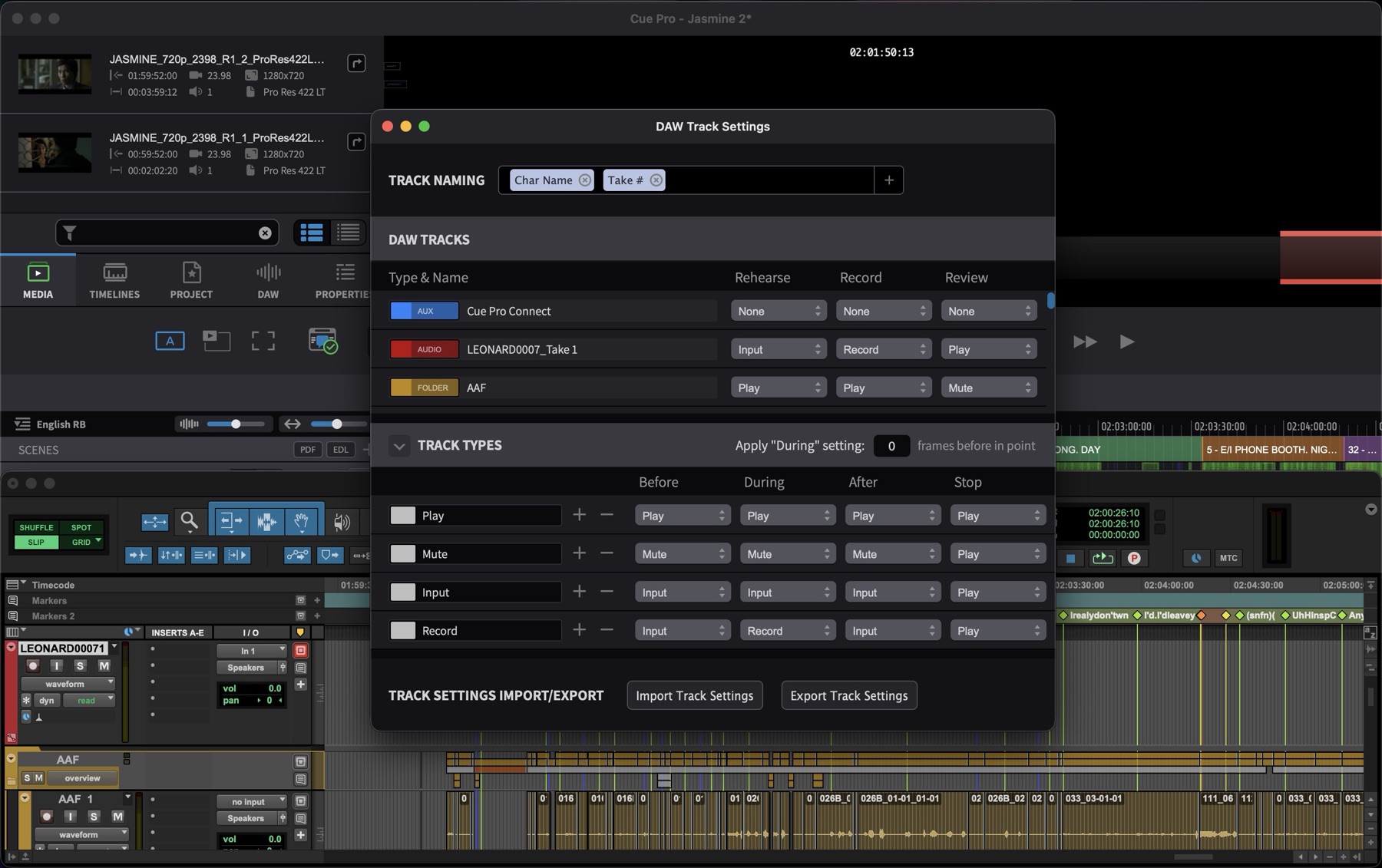
The window is divided into three sections, each handling a different aspect of the recording setup:
- Track Naming - defines how Pro Tools names the recorded audio files
- DAW Tracks - assigns Pro Tools session tracks to Cue Pro's recording roles
- Track Types - defines global, reusable templates that control track behaviour during each phase of a recording pass
Note: Users familiar with ADR Master Studio will recognise these settings from the DAW tab of the main window. In Cue Pro, they have been promoted to a standalone resizable window.
Track Naming
The Track Naming section at the top of the DAW Track Settings window controls how Pro Tools names the record track - and therefore the recorded audio file - before each recording pass. The section holds one naming row per simultaneously recorded track. By default there is a single row, which records onto one track per pass. To record onto multiple tracks simultaneously - for example a boom and a lav microphone captured in the same pass - add additional naming rows.
To the right of the first row are two icon buttons:
Add Record Track (+) and
Remove Record Track (-).
Add Record Track appends a new row beneath the
current one, pre-filled as a copy of the row above so that only
the part that differs needs editing - typically a microphone
suffix such as _Boom or _Lav.
Remove Record Track removes the last row. The
first row can never be removed. A maximum of four naming rows is
allowed.
Each row is an independent naming field with the full set of placeholder tags, so the distinguishing element does not have to sit at the end of the name - it can be placed anywhere. The number of naming rows defines the set size - the number of Pro Tools tracks that make up one recordable set. See the Assigning Record Tracks to Cues section below for how sets are formed from the tracks in the recording matrix.
Note: Each naming row must produce a unique
track name in Pro Tools. If two tracks end up with the same
name, Pro Tools will not record onto both - it silently records
onto only one. Include a distinguishing element in each row,
such as a microphone identifier (_U87,
_DPA4061), position (_Close,
_Distant), or recording method (_Boom,
_Lav).
Click the + button within a naming row to add placeholder tags to that row's naming field. The available placeholders are:
- Char Name - the full character name
- Char Pfx - the character prefix code (e.g., LEONARD)
- Cue # - the cue number
- Take # - the take number (incremented by Cue Pro for each recording pass on this cue)
- Text - the dialogue text
- Timeline - the timecode position
- Pic Version - the picture version
- Ep/Reel - the episode or reel number
Once added, placeholders appear as boxes in the naming field. Their order can be rearranged by clicking and dragging a box to the desired position. Click between placeholders to add static text - such as an underscore or hyphen - which will also appear in the track name.
Click the x on any placeholder to remove it.
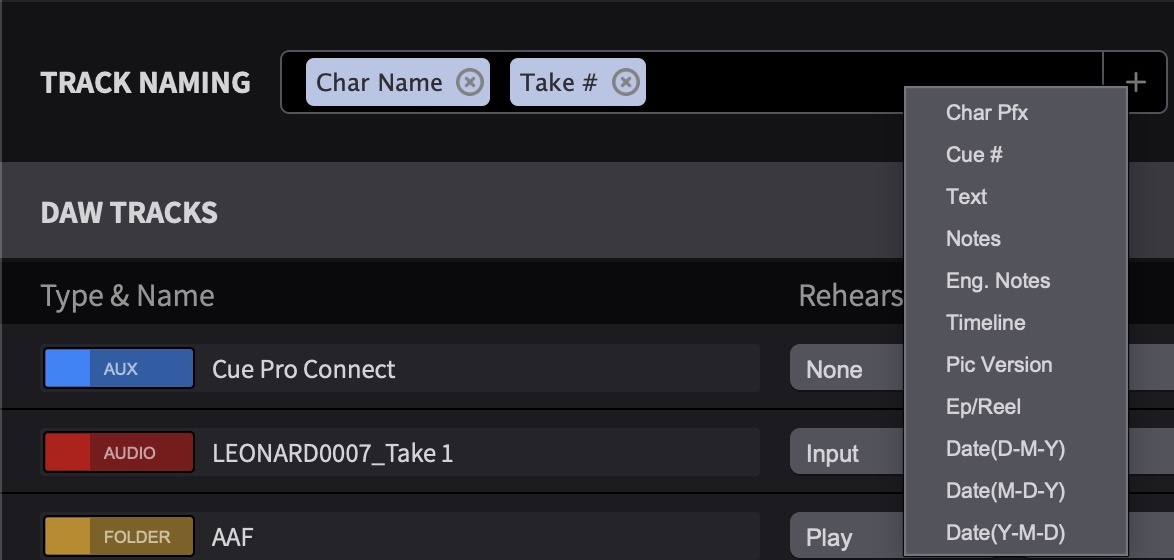
Example: With Cue # and
Take # placeholders active, recording the third
take of cue LEONARD0009 would name the track
LEONARD00093. Note that without any separator, the
take number runs directly into the cue number - which can be
difficult to read. To improve clarity, click between the two
placeholders and type static text such as an underscore or the
word "Take". With Cue #, the static
text _Take , and Take #, the same
recording would produce: LEONARD0009_Take 3.
When multiple cues are selected before recording, the cue
numbers are hyphenated in the track name. For example, selecting
cues LEONARD0004, LEONARD0005, and LEONARD0007 and recording the
first pass would produce:
LEONARD0004-LEONARD0005-LEONARD0007_Take 1.
If no placeholders are added to the Track Naming field, the name of the recorded file will be determined by whatever name the record track already has in Pro Tools - requiring manual naming before each pass.
Cue Pro Take Counter vs. Pro Tools Take Numbering
Cue Pro maintains its own per-cue take counter in the Event List (visible in the Takes: # column). This counter is intelligent: it increments for every cue that was covered during a recording pass, regardless of whether that cue was explicitly selected. If a recording pass starts at cue 3 and the talent records through cues 3, 4, 5, and 6, all four cues have their take count incremented. Even cues belonging to other characters that fall within the recorded range are counted. A cue's take count only increments if the recording passed the cue's Out Point - partial coverage does not count.
Pro Tools handles take numbering differently. The take number in the filename is based purely on whether a file with that exact name already exists - it is a filename collision check, not a per-cue counter. If the naming format is changed (different placeholder combination, different cue selection), Pro Tools treats it as a new prefix and resets to take 1, even if Cue Pro's Event List shows a higher take count for that cue. Pro Tools also does not distinguish between complete and partial recordings - a false start or aborted take still increments the filename counter. This means that if a recording is stopped before completion, the next full take will carry a higher number than expected, causing the Pro Tools filename take number to drift out of sync with Cue Pro's per-cue take count.
To let Pro Tools handle take numbering, omit the
Take # placeholder from Cue Pro's
Track Naming - Pro Tools will append its own
_01, _02 suffix automatically.
Note (Legacy DAW Control modes only): When using the legacy Key Commands Only or HUI & Key Commands DAW Control modes, track naming relies on Cue Pro sending keystrokes to Pro Tools to double-click the track name field and type the new name. This requires the record track's name field to be visible on screen in the Pro Tools Edit or Mix window - if it is scrolled out of view or obscured by another window (such as a plug-in), the rename will fail. If the track name or timeline selection is not applied correctly, go to Cue Pro menu → Preferences / Settings → ADR REC → CONTROL SETTINGS → Keystroke Delay and try increasing the delay. Longer delays increase the time before recording starts, so keep this value as low as possible relative to system performance. In Pro Tools Integrated Mode and in Media Mode with the Modern DAW Control mode, track naming is handled directly via the Pro Tools Scripting Library (PTSL) and these limitations do not apply. See the DAW Control and Accessibility API Setup chapter for more information on DAW Control modes.
DAW Tracks
The DAW Tracks section lists every track in the currently connected Pro Tools session. For each track, three columns define what Cue Pro should do with that track during each recording mode:
- Rehearse - the track's state when auditioning a cue (playback only, no recording)
- Record - the track's state during a recording pass
- Review - the track's state when playing back the last recorded take
Each column contains a drop-down where a Track Type is assigned to define the track's behaviour. Track Types are configured in the Track Types section below - they determine the Before, During, After, and Stop states for each phase of a recording pass.
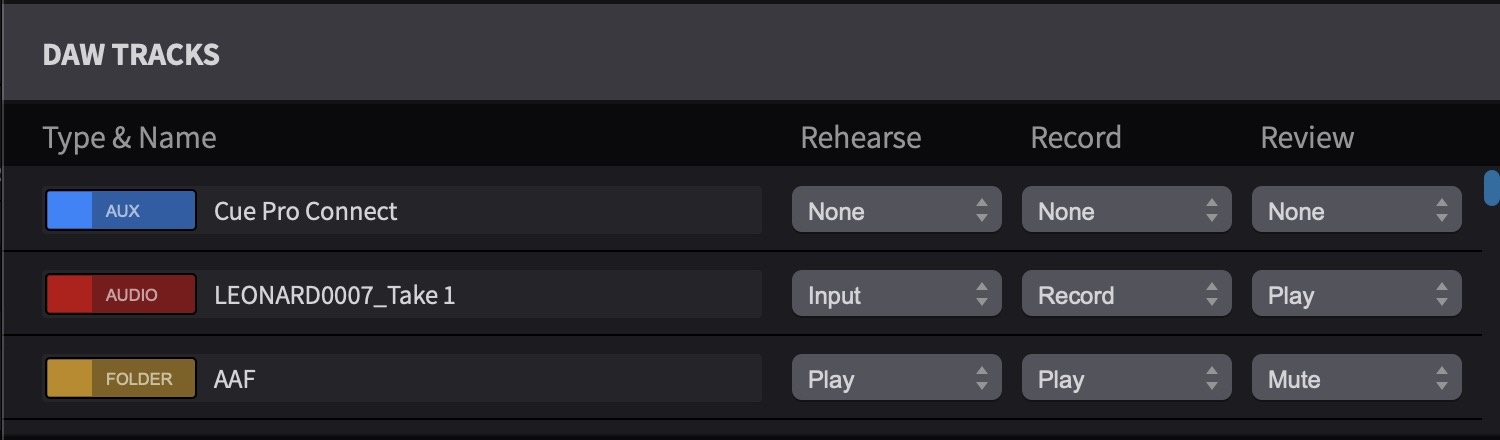
Key features of the DAW Tracks section:
Cue Pro reads all Pro Tools track types - audio, aux, master, VCA, and folder tracks - with the exception of video tracks. Each track displays a colour swatch and track type badge pulled live from Pro Tools - these update automatically and cannot be manually set in Cue Pro.
Folder track support enables bulk control over groups of tracks. Instead of configuring each track in a Pro Tools folder individually, assign a Track Type to the folder track itself. For example, if the guide dialogue elements - such as a dialogue AAF or a full dialogue edit - are grouped in a single Pro Tools folder, assigning a Track Type with an After state of Mute to that folder will mute the entire group during the review phase - much cleaner than configuring each track separately.
Track assignments in the DAW Tracks section are per-session. They are remembered for each Pro Tools session and persist across Cue Pro restarts - the assignments will be restored the next time the same session is opened. The track list updates dynamically: if tracks are added or removed in Pro Tools, the DAW Tracks list reflects those changes.
When the Move Track Matrix Settings when Moving Tracks in DAW preference is enabled (in Preferences / Settings → ADR REC → OTHER SETTINGS), reordering tracks in Pro Tools also updates their position in the DAW Tracks list - keeping assignments aligned with the correct tracks. When disabled, the DAW Tracks list order remains fixed regardless of changes in Pro Tools.
If no tracks are set to Record in the DAW Tracks matrix, Cue Pro will check whether any track is already record-enabled in Pro Tools and use that track automatically. This allows the simpler workflow of manually arming a track in Pro Tools without configuring the matrix.
Note (Media Mode only): If a Pro Tools track does not switch into the expected state (Record, Input, Mute, etc.) during a recording pass, try restarting Pro Tools and reconnecting DAW Control.
Track Types
The Track Types section defines global, reusable templates that control how Pro Tools tracks behave during each phase of a recording pass. Each Track Type specifies four states:
| Column | When It Applies |
|---|---|
| Before | Before the cue's In Point is reached (i.e., during the pre-roll) |
| During | While playback or recording is within the cue's In-to-Out range |
| After | After the cue's Out Point is passed (i.e., during the post-roll, or for the remainder of the pass if not in Single mode) |
| Stop | When Pro Tools transport stops completely |
The available state values for each column are: Play, Mute, Input, Solo, and Record. The Record state is only available in the During column when the recording mode is set to Record.
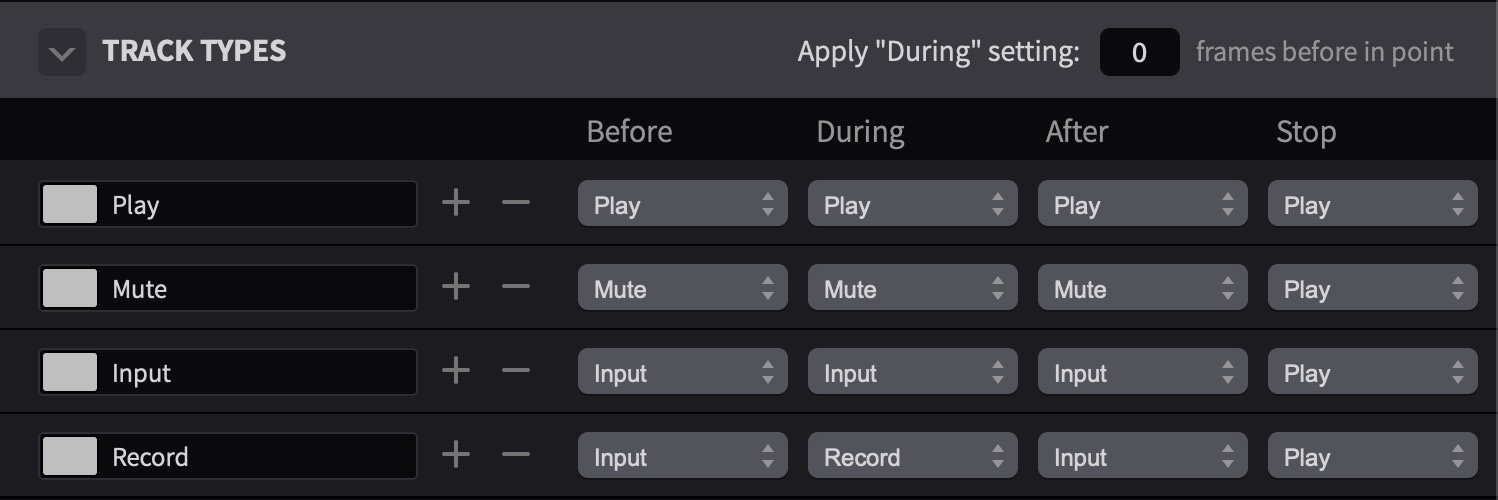
Several default Track Types are provided. These can be edited or deleted, and new Track Types can be added to suit specific recording workflows, using the + and - buttons alongside each Track Type in the list.
The Two-Tier System
Track Types and DAW Tracks work together as a two-tier system:
- Track Types are the templates - global definitions that are portable across projects. They persist in Cue Pro's settings regardless of which Pro Tools session is connected.
- DAW Tracks are the assignments - each Pro Tools track in the current session is assigned a Track Type for each recording mode (Rehearse/Record/Review). These assignments are per-session.
This separation means a Track Type defined as "Record track with muted review" can be reused across any session without reconfiguration. Only the DAW Tracks assignments need updating when switching to a different Pro Tools session.
The Stop State
The Stop column is a fourth state that defines what happens to a track when the Pro Tools transport stops completely - not just when a cue reaches its Out Point, but when playback or recording is fully stopped.
Without the Stop state, tracks would remain in whatever state they were last set to (typically the After state). This caused a practical problem: if a track's After state was set to Mute - so that, for example, the guide dialogue is silenced during review playback - it would stay muted even after the transport stopped. The engineer would not be able to hear the talent's voice between takes for communication or direction.
The Stop state solves this by providing a defined "resting" state. Setting the Stop state to Play on a track that has an After state of Mute means the track returns to normal playback as soon as the transport stops - allowing communication between takes while still muting the guide during review.
Note: The Stop state is defined per Track Type, not per individual track. Tracks inherit their Stop behaviour from whichever Track Type is assigned to them in the DAW Tracks section.
Applying the During State Early
Below the Track Types table is a preference that controls when the During state is applied. By default, the During state is applied at the In Point of the cue. However, there are scenarios where applying it slightly earlier is useful - for example, when the recording room uses a speaker rather than headphones for playback. In that case, muting the playback track a few frames early allows the sound to decay before the recording pass begins, avoiding feedback. Set the number of frames in advance using the field provided.
Practical Examples
The recording matrix and Track Types system is highly flexible. The following examples illustrate common configurations:
Standard ADR setup: The record track is set to Input (Before), Record (During), Input (After), Input (Stop). Before the cue, the track is in input mode so the talent's microphone is live. During the cue, it records. After the cue, it returns to input. The Stop state is also set to Input - this ensures the mic stays live even if the recording is aborted mid-cue (where the transport stops before reaching the Out Point, so the After state is never reached). Pro Tools' Track Input monitoring behaviour determines what is heard through the track when it is in input mode: if audio exists at the current timeline position, Pro Tools can be configured to play it back; if not, it passes the live input.
Guide dialogue folder - muted on review: All guide dialogue elements are in a single Pro Tools folder. Rather than configuring each track individually, assign a Track Type to the folder track with an After state of Mute. Then assign this same Track Type to the folder track's Review column in the DAW Tracks section. During review playback, the entire folder goes silent so the recorded take is heard cleanly.
Listen-and-repeat method: Set the guide dialogue track's After state to Mute. When the cue reaches its Out Point, the original dialogue disappears - the talent then repeats what they just heard without the guide competing. This works particularly well with Single w/ open end Event Record Mode in Line Based mode, which keeps the cue text visible on screen past the Out Point.
Timing reference at reduced volume: In Pro Tools, create two aux return tracks fed from the same guide dialogue bus - one at full volume and one reduced (e.g., -12 dB). In the DAW Tracks section, assign the full-volume aux a Track Type with a Before and During state of Play for the Rehearse column, and Mute for Record and Review. Assign the reduced-level aux a Track Type with Play for Record (so it plays quietly during recording) and Mute for Rehearse and Review. The result: the talent hears the guide at full volume during rehearsal, at reduced volume during recording (as a quiet timing reference), and not at all during review.
Countdown beeps - muted on review: The Cue Pro Connect plug-in is instantiated on a mono aux track in Pro Tools - this is the track that plays the countdown beeps before each cue. In the DAW Tracks section, find this aux track and assign a Track Type with an After state of Mute to its Review column. This ensures the beeps do not play during review - the countdown is only needed before the take, not when listening back to the recording.
Track Settings Import and Export
Below the Track Types section, the Import Track Settings and Export Track Settings buttons allow the current DAW track configuration to be saved for future projects or shared with other users.
Track Types are already portable (they persist across projects within Cue Pro), but the export feature packages both the Track Types and the Track Naming configuration into a single file. This is useful when sharing a complete recording setup between machines, studios, or other engineers - for example, saving separate ADR and Foley profiles that can be imported at different facilities.

Assigning Record Tracks to Cues
Cue Pro groups the tracks set to Record in the DAW Tracks matrix into sets based on the current set size (the number of naming rows in the Track Naming section). The tracks are grouped in track order. With two naming rows and four tracks set to Record, two sets are formed - the first and second tracks make one set, the third and fourth make the next. With three naming rows and six tracks set to Record, two sets of three are formed. Within a set, each track takes its naming row in order - the first track receives the first naming row, the second track the second row, and so on. An empty naming row leaves that track's name untouched in Pro Tools.
When only one naming row is defined (the default), each track set to Record is its own set and the behaviour is identical to a single-track recording setup.
The Rec Track drop-down in the Event List, Properties tab, and Edit Event window shows which set each cue records onto. With one naming row, the drop-down lists single track numbers - 1, 2, 3 - as before. With two naming rows it lists ranges - 1-2, 3-4 - and with three naming rows - 1-3, 4-6. Only complete sets are offered. With two naming rows and five tracks set to Record, the drop-down lists 1-2 and 3-4 only - the lone fifth track cannot form a complete set. When no complete set can be formed, the Rec Track field shows N/A.
When only one complete set exists, all cues default to that set - no manual assignment is needed. When multiple complete sets exist, the Rec Track field determines which set each cue records onto. This is where manual assignment or automatic checkerboarding becomes relevant.
Alternatively, with a single naming row, the recording matrix can be bypassed entirely. Simply record-enable the desired track in Pro Tools before starting a pass. Cue Pro will detect the armed track and use it automatically. With this approach, no record tracks need to be defined in the DAW Tracks matrix and the Rec Track field on cues can remain unassigned. When multiple naming rows are defined, record tracks must be assigned in the matrix - manual record-enabling in Pro Tools is not sufficient, as Cue Pro needs the matrix to form complete sets.
Recording Requires a Complete Set
A recording pass always targets a complete set of tracks. Cue Pro will not record onto a partial set. If a complete set cannot be formed when a recording pass is started, Cue Pro shows a warning dialog titled Not enough record tracks and the pass does not begin. The message specifies what was checked - for example, how many naming rows are defined versus how many record tracks are available. This check applies only to recording - Rehearse and Review passes do not perform the check.
Checkerboard Overlapping Cues Across Record Tracks
Go to Cue Pro menu → Preferences / Settings → ADR REC → OTHER SETTINGS → Checkerboard Overlapping Cues Across Record Tracks.
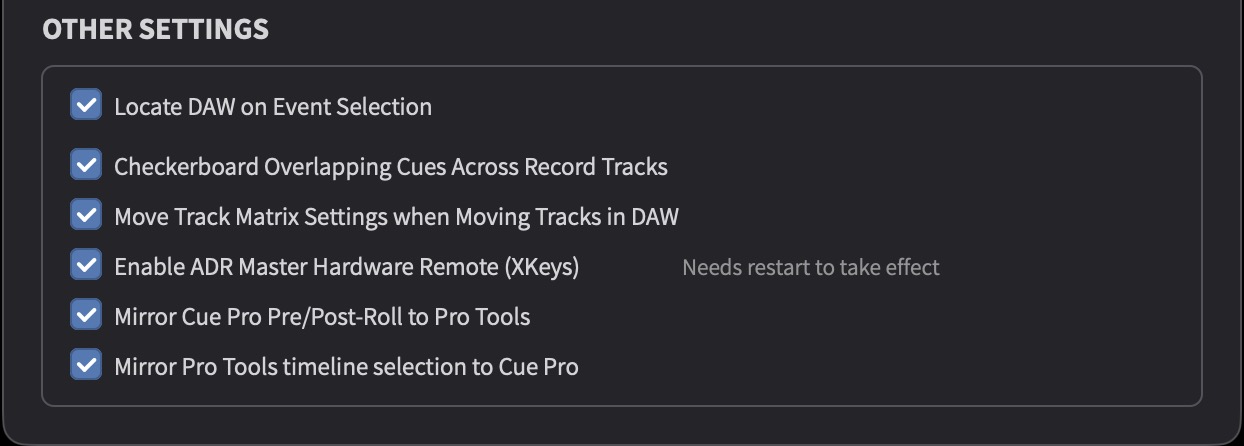
When enabled, Cue Pro automatically assigns each new cue to the first set. It also checks for overlapping cues or cues in close proximity and distributes them across sets in a checkerboard pattern - preventing audio from being overwritten when recording overlapping cues. This recheck occurs whenever the record tracks in the DAW Tracks matrix are updated. Checkerboarding requires at least two complete sets - if only one complete set exists, there is no second set to alternate to and all cues remain on the first set. Overlapping cues must also have different cue numbers for checkerboarding to take effect.
When disabled, all cues default to the first set but are not distributed across sets. Manual assignment via the Rec Track field is still possible.
Note: Checkerboarding only works when record tracks are defined in the DAW Tracks matrix. It does not apply when tracks are record-enabled manually in Pro Tools.
For more detail on the Rec Track field, including per-character default assignment, see the Recording Cue Properties Reference section later in this chapter.
Setting Pre-Roll, Post-Roll and DAW Cue Expansion
Cue Pro Pre-Roll and Post-Roll
The Pre-Roll and Post-Roll duration fields and enable/disable buttons are located in the Controller Bar, to the left of the Link button. The Pre-Roll enable button is to the left of its duration field; the Post-Roll enable button is to the left of its duration field.
The format of the duration fields differs between operational modes. In Pro Tools Integrated Mode, each field displays seconds and frames.
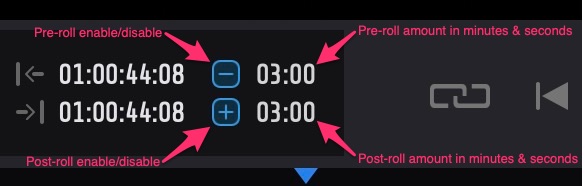
In Media Mode, each field displays a full timecode counter.
To quickly toggle both Pre-Roll and Post-Roll on or off at the same time, press P on the keyboard.
Pro Tools Pre-Roll and Post-Roll
When using Cue Pro's recording controls (Rehearse, Record, or Review), Pro Tools also requires suitable Pre-Roll and Post-Roll times to allow the Primary Pre Roll Streamer to be shown before the cue. Pro Tools only records during the Pre-Roll and Post-Roll when its record mode is set to Punch.
To set the Pre-Roll and Post-Roll in Pro Tools, ensure that both the Expanded Transport and Transport counters are enabled in the arrow menu at the top right of either the Transport window or the transport controls in the Pro Tools Edit window.
Mirroring Pre-Roll and Post-Roll to Pro Tools
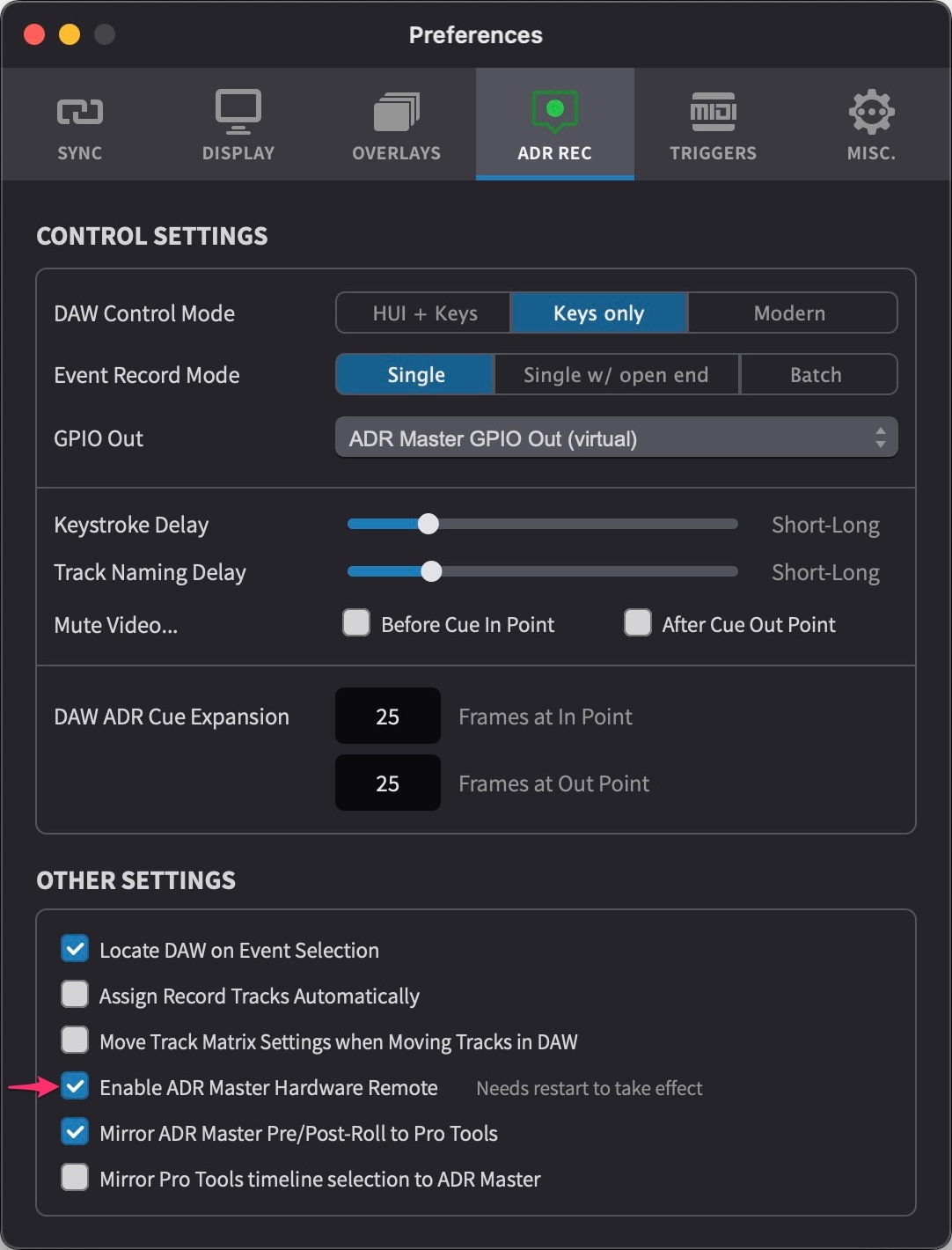
To have Pro Tools' Pre-Roll and Post-Roll settings follow the values set in Cue Pro, go to Cue Pro menu → Preferences / Settings → ADR REC → CONTROL SETTINGS and enable Mirror Cue Pro Pre/Post-roll to Pro Tools. This preference only takes effect when one of the three recording modes (Rehearse, Record, or Review) is initiated from Cue Pro.
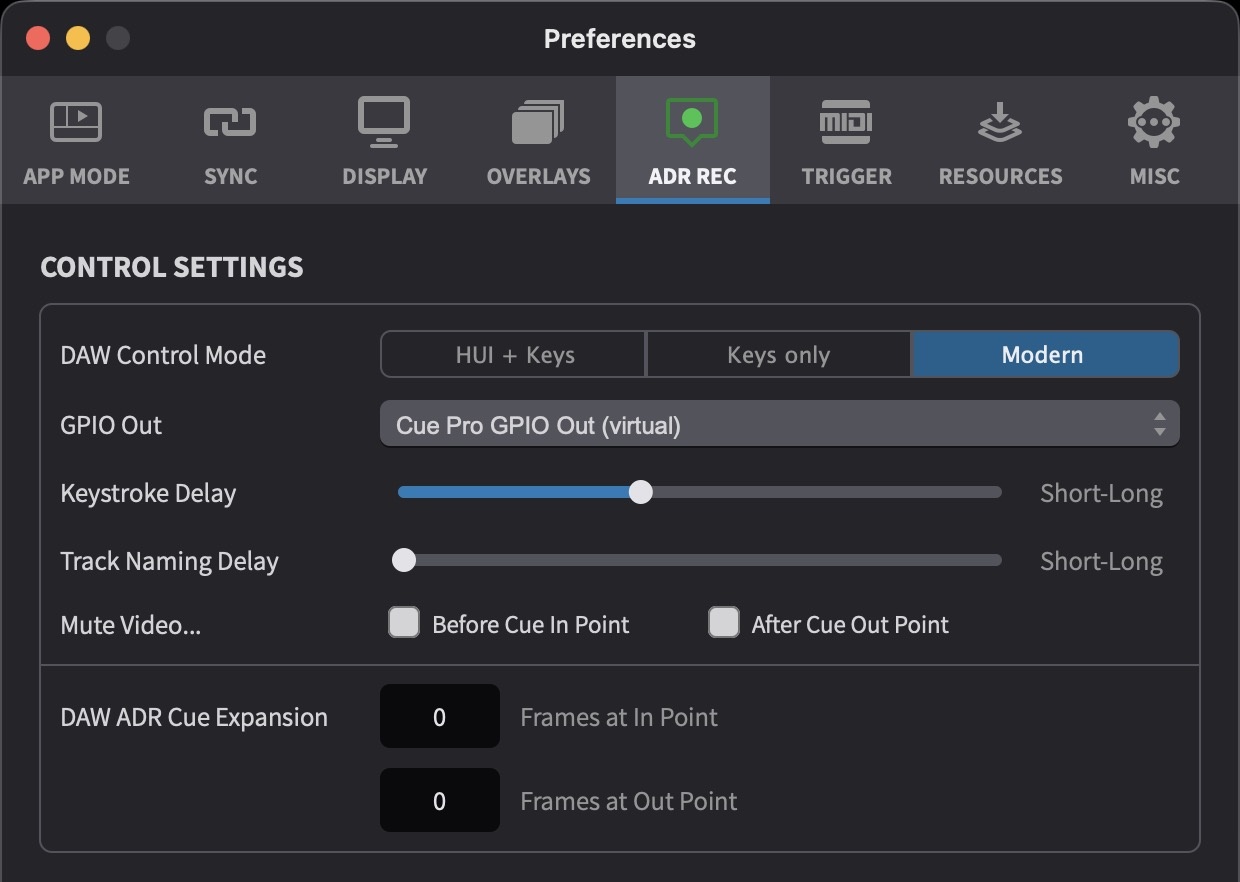
With this setting enabled, any previous Pre-Roll and Post-Roll values in Pro Tools will be overwritten by Cue Pro's values.
To control the Pre-Roll and Post-Roll times manually in Pro Tools instead, disable Mirror Cue Pro Pre/Post-roll to Pro Tools. In that case, Cue Pro's Pre-Roll and Post-Roll settings only affect standalone playback within Cue Pro and do not change Pro Tools' values.
When controlling Pre-Roll and Post-Roll manually in Pro Tools, set the Pre-Roll to match the Streamer duration (Streamer Durn) values set for the selected events in the Event List, or the generic Pre-Roll setting in Cue Pro's Controller Bar. To quickly set all ADR Cues for one character to the same streamer duration, set the relevant character filter, select all events with Command & A, and set any event to one of the available durations in the Streamer Durn column: 1, 2, 2.67, 3, 3.33, or 5 seconds.
Note: The visual experience during pre-roll differs between overlay modes. In Line Based mode, a Streamer (animated bar), Count Down, or Count Up plays during the pre-roll. In Rhythmo Bande mode, the scrolling text takes the pre-roll duration to travel from the right edge of the screen to the sync marker - the talent sees the text approaching and knows when to begin speaking.
DAW Cue Expansion
To ensure that the recording is not clipped at the start or end of the cue, either set the Pro Tools record mode to Punch (in which case recording starts the moment playback begins), or use the DAW Cue Expansion setting to add a recording buffer.
Go to Cue Pro menu → Preferences / Settings → ADR REC → CONTROL SETTINGS → DAW ADR Cue Expansion. Set Frames at In Point to add frames before the cue's start, and Frames at Out Point to add frames after the cue's end. These values are relative to the timeline frame rate. The visual event overlays remain unchanged - only the Pro Tools selection is expanded.
If the Event Record Mode is set to Batch, only the start timecode will be expanded.
Muting Video During Pre-Roll and Post-Roll
In some workflows it is helpful to mask the video with black before the In Point or after the Out Point. Go to Cue Pro menu → Preferences / Settings → ADR REC → CONTROL SETTINGS → Mute Video and enable Before Cue In Point and After Cue Out Point as desired. Both options only take effect during Rehearse, Record, or Review playback.
Choosing an Event Record Mode
Event Record Mode determines how long Pro Tools records or plays back, and which event overlays are displayed during a recording pass. Three modes are available: Single, Single w/ open end, and Batch.
To set the Event Record Mode, right-click (or Control-click) the Record button in the Controller Bar. A menu appears showing the three modes, with a tick next to the currently active mode.
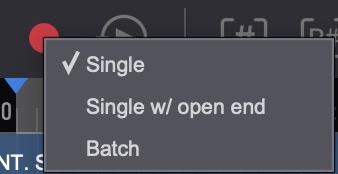
Note: When switching between Line Based and Rhythmo Bande overlay modes, the Event Record Mode is automatically set to the most appropriate default: Single for Line Based and Batch for Rhythmo Bande. This can be changed manually at any time using the method above.
Note: In Single and Single w/ open end mode, the Rehearse, Record, and Review buttons are inactive until one or more ADR Cues are selected in the Event List or timeline, and starting a pass from the keyboard or a hardware controller without a selection shows the warning No ADR Cue Selected. In Batch mode the buttons stay active without a selection - see the Batch section below.
Single
Cue Pro displays the overlay for the selected event(s) and stops playback or recording at the Out Point of the last selected event (plus the Post-Roll). This is the standard mode for cue-by-cue recording in Line Based workflows.
Single w/ open end
Cue Pro displays the overlay for the selected event(s) but continues playback or recording past the Out Point until the Stop button is pressed. This mode is suited to a listen-and-repeat recording style, where the talent hears the original line and then repeats it after the cue's Out Point. It is also useful when the talent wants to attempt additional wild takes within the same pass.
In Line Based mode, the cue text remains on screen after the Out Point - providing a visual reference while the talent repeats the line.
In Rhythmo Bande mode, the scrolling text continues past the selected cue and scrolls the text for any subsequent cues encountered during playback.
Individual ADR Cues can also be set to record open-ended on a per-cue basis using the Open Ended checkbox in the cue properties, regardless of the global Event Record Mode. See the Recording Cue Properties Reference section later in this chapter.
Batch
Cue Pro displays the overlays for all events currently shown in the Event List (according to the active filter settings) and continues playback or recording until the Stop button is pressed.
In Line Based mode, Batch plays all visible cues - including unselected cues and cues on other character tracks. This is useful when the talent wants to record multiple cues in a single continuous pass.
In Rhythmo Bande mode, Batch displays the scrolling text for the selected cue and for any subsequent cues encountered during playback, and recording continues until manually stopped. Connected CueLink devices follow the playhead across all cues. Batch is the recommended mode for Rhythmo Bande work.
In Batch mode a pass can also be started with only a timeline range and no selected ADR Cue. Draw a selection in Timeline Range Mode, or click a loop on the LOOPS track, and press Rehearse, Record or Review. The pass covers that range; without a timeline selection it starts at the playhead and runs until stopped. Because no ADR Cue defines the pass, track naming and DAW track automation are skipped: Cue Pro applies no track name and changes no Pro Tools track states, so a Record pass requires a track to be record enabled in Pro Tools beforehand. Overlays, Pre-Roll and Post-Roll and the GPIO messages (pass start, In Point, Out Point, stop) are sent as in any other pass. This is the basis for loop-based recording - see the Loops chapter for the full description.
Which Mode to Use
For Line Based recording, Single mode is the standard choice for cue-by-cue work. Single w/ open end is ideal for listen-and-repeat workflows or when wild takes are needed after the scripted line. Batch is useful for continuous passes covering multiple cues.
For Rhythmo Bande recording, Batch is the recommended mode - it allows the talent to record through multiple cues without interruption and connected CueLink devices follow the playhead across all cues. Single w/ open end continues recording past the Out Point but CueLink only follows the selected cues. Single mode stops recording after the selected cue's Post-Roll, which interrupts the continuous recording flow that Rhythmo Bande sessions depend on.
Running a Recording Session - Line Based
This section walks through a typical Line Based ADR recording session from start to finish. Line Based recording is cue-centric - each step focuses on selecting, recording, and reviewing individual cues.
The Event List Record Controls
The Event List is the primary control surface for ADR recording. Open it from the Window menu → Event List, or press Shift & L.
The record mode buttons are located in the Event List header:
- Rehearse - auditions the selected cue(s) by starting Pro Tools playback without recording
- Stop - stops Pro Tools playback or recording
- Record - initiates a recording pass for the selected cue(s)
- Review - plays back the last recorded take for the selected cue(s)
Keyboard shortcuts for these functions work even when Cue Pro is not the frontmost application:
- Command & F1 - Rehearse
- Command & F2 - Stop
- Command & F3 - Record
- Command & F4 - Review
When any of the three active buttons (Rehearse, Record, Review) is pressed with one or more ADR Cues selected, Cue Pro sets a timeline selection in Pro Tools based on the selected cue(s), applies the track name (if configured), and sets the track states according to the recording matrix. In Batch mode a pass can also be started without a selected ADR Cue; track naming and the recording matrix are then skipped (see Batch under Choosing an Event Record Mode).
Step-by-Step: Recording a Cue
-
Filter to the character being recorded. Use the character filter in the Event List or Visual Events header to show only the cues for the current character. This keeps the Event List focused and - in Batch mode - ensures only the relevant character's cues are played.
-
Select a cue. Click a cue in the Event List, or use the Up and Down arrow keys to navigate between cues. Additional selection methods:
- Command & A - select all visible cues
- Shift & arrow keys - select multiple consecutive cues
- Command & click - select multiple non-consecutive cues
- Option & F1 / Option & F2 - select the previous or next cue by cue number
-
Rehearse. Press the Rehearse button or Command & F1. Pro Tools plays back the cue with pre-roll and post-roll. The overlay displays the Pre Roll Streamer, dialogue text, and Progress Bar. This allows the talent to familiarise themselves with the line and its timing before committing to a recording. It also serves as a check that the text, track routing, and overlay are correct.
-
Record. Press the Record button or Command & F3. Pro Tools starts recording on the assigned record track. The same overlay sequence plays - Pre Roll Streamer, text, Progress Bar - but now audio is being captured.
-
Stop (if needed). In Single Event Record Mode, recording stops automatically at the Out Point (plus Post-Roll). If the talent misses the cue start or the take needs to be aborted, press the Stop button, Command & F2, or Space to stop recording immediately.
-
Review. After the recording pass completes (or is manually stopped), press the Review button or Command & F4. Pro Tools plays back the last recorded take. The recording matrix switches tracks to their Review states - typically muting the guide dialogue and playing the recorded take.
-
Mark selects and alternates. In the Event List, the Takes column provides three fields:
- Takes: # - shows the total number of takes recorded for this cue
- Takes: Sel - click to select which take is the preferred (select) take
- Takes: Alt - click to select which take is the alternate
If another take is needed, repeat steps 4 to 6.
-
Done status. The Done checkbox is automatically enabled after at least one recording pass. If after several takes the team decides the cue is not working and wants to return to it later in the session, uncheck Done to remove it from the completed count.
-
Advance to the next cue. Press the Down arrow key to select the next cue and repeat from step 3.
Tips for Line Based Recording
Target Event Mode keeps the current cue selected after a recording pass completes, which is useful when working through cues sequentially. Without it, the cue selection may be lost after recording. This happens because Pro Tools has an Insertion Follows Playback preference (also available as a button in the Transport window) - when enabled, Pro Tools removes the timeline selection after playback or recording stops and moves the cursor to the stop point. Many engineers prefer this enabled for general editing work. In Media Mode, the Mirror Pro Tools timeline selection to Cue Pro preference (in Preferences / Settings → ADR REC → OTHER SETTINGS) determines whether Cue Pro follows this behaviour. When the mirror preference is enabled and Insertion Follows Playback is on, Cue Pro loses the cue selection too. Disabling the mirror preference allows the engineer to keep Insertion Follows Playback enabled in Pro Tools without losing the cue selection in Cue Pro. See the Selection Preservation After Recording section later in this chapter for details.
Open-ended cues: Individual cues can be set to record open-ended (past the Out Point) using the Open Ended checkbox in the cue properties. This overrides the global Event Record Mode for that specific cue - useful when most cues are recorded in Single mode but a few require extra recording time, or where a cue is a good candidate for listen-and-repeat delivery (e.g., a single word or short phrase where the talent benefits from hearing the original before performing).
Running a Recording Session - Rhythmo Bande
This section walks through a typical Rhythmo Bande ADR recording session. Rhythmo Bande recording is pass-centric - the focus is on continuous recording passes that may cover multiple cues, with the scrolling text providing precise timing references for the talent.
Preparing for a Rhythmo Bande Recording Session
Note: When switching to Rhythmo Bande overlay mode, Cue Pro automatically sets the Event Record Mode to Batch.
-
Set the actor filter. Use the character filter in the Event List or Visual Events header to show only the cues for the character being recorded. This is a standard step before each character pass.
-
Confirm Edit Mode. The Edit Mode toggle in the Controller Bar controls how cue selection behaves. Target Event Mode keeps the selected cue highlighted after recording, which is useful when working through cues in order. Timeline Range Mode mirrors timeline selections between Cue Pro and Pro Tools, which may be more natural for continuous-pass workflows where the engineer is navigating by timeline position rather than cue number. Choose the mode that suits the session's workflow.
Step-by-Step: Recording a Pass
-
Select a starting cue, or a loop. Click a cue in the Event List where the talent should begin reading. In Rhythmo Bande, the selected cue acts as a starting point, not a boundary - recording continues past it into subsequent cues. With a selected cue, Cue Pro applies the track name and the recording matrix states as configured in the DAW Track Settings window.
Alternatively, in Batch mode, click a loop on the LOOPS track (or locate to a timeline position) and start the pass without selecting a cue. The pass then covers the loop's range, or runs from the playhead until stopped. No track name is applied and no track states are changed, so the record track must be record enabled in Pro Tools beforehand. See the Loops chapter for details.
-
Rehearse (optional). Press Rehearse or Command & F1 to preview the scrolling text and timing from the selected cue. The text scrolls across the screen during the pre-roll period, arriving at the sync marker at the In Point - giving the talent a visual indication of when to begin speaking. This allows the talent to familiarise themselves with the line and its timing before committing to a recording. It also serves as a check that the text and overlay are correct.
-
Record. Press Record or Command & F3. Pro Tools starts recording. The scrolling text plays for the selected cue and continues through any subsequent cues encountered during the pass. The talent reads the scrolling text and records for as long as the director is satisfied with the performance.
-
Stop. When the director calls a stop, press Stop, Command & F2, or Space. The talent may have covered anywhere from one cue to an entire scene in a single pass. The recording can also be stopped immediately if the talent misses the cue start and the take needs to be aborted.
-
Review. Press Review or Command & F4 to play back the recorded pass. The recording matrix switches tracks to their Review states.
-
Evaluate and continue. The director reviews the pass and decides which cues were successful. The engineer then selects the next cue that needs recording - which may be the first cue that was not satisfactory, or a completely different starting point - and records the next pass from there.
How Rhythmo Bande Sessions Typically Flow
In traditional Rhythmo Bande dubbing - rooted in the French "boucle" (loop) system - the session is organised around groups of lines, typically up to eight lines involving one to four characters, that form a single recording pass. The talent performs the group, the engineer records it, and the team moves on to the next group or retakes the current one.
In practice, each recording pass can be a different length and can start from a different point in the timeline. The director may approve the first several cues from a pass and ask the engineer to start the next pass from the first unsatisfactory cue. This fluid approach means the engineer is frequently selecting different starting points rather than advancing one cue at a time.
The scrolling text provides more precise timing references than a fixed-position streamer countdown, which is why Rhythmo Bande sessions can achieve significantly higher throughput.
Features Less Commonly Used in Rhythmo Bande
Several features designed for cue-by-cue Line Based recording are less relevant in pass-centric Rhythmo Bande workflows:
Track naming per cue is less critical because a single recording pass covers multiple cues. The recorded audio file name reflects whatever cues were selected at the start of the pass, not every cue that was covered.
The Before/During/After track state cycle in the recording matrix is designed around individual cue boundaries - switching states as each cue's In Point and Out Point are crossed. In a continuous Rhythmo Bande pass, these transitions still occur but are less noticeable since the recording runs through multiple cues without stopping. Many Rhythmo Bande engineers use a simpler matrix configuration - a static state for the duration of the pass rather than per-cue state changes.
Single Event Record Mode stops recording after the selected cue's Post-Roll. Since Rhythmo Bande sessions depend on continuous recording through multiple cues, this mode is rarely appropriate.
Recording Cue Properties Reference
Several ADR Cue properties are directly related to the recording workflow. These properties are set per cue and can be viewed and edited in the Event List, Properties tab, or Edit Event window.
Done
The Done checkbox indicates that a cue has been successfully recorded. It is automatically set when a take is recorded for the cue and can also be toggled manually. Cues marked as Done are highlighted in the Event List with a green line on the left edge and a green-tinted row background, making it easy to distinguish recorded cues from those still to be done at a glance.
The Done status is used by the recording progress display (see below) to calculate how many cues have been completed.
Recording Progress
The recording progress count - displayed in the Event List header - shows how many cues have been marked as Done relative to the total number of visible cues. Two display modes are available:
- #c - cue count mode (e.g., "12 / 45" meaning 12 of 45 cues are done)
- #w - word count mode (e.g., "340 / 1200" meaning 340 of 1200 words have been recorded)
Click the progress display to toggle between modes.
Takes
The Takes: # field shows the total number of recording passes that covered this cue. Cue Pro's take counter is intelligent - it counts every recording pass that covered the cue (passed its Out Point), regardless of whether the cue was explicitly selected before recording. Partial passes that stop before the cue's Out Point are not counted.
Note: The take count cannot account for false starts - if the transport was started and stopped before reaching the cue's Out Point, no take is counted, but if it passed the Out Point even briefly, a take is counted.
The Takes: Sel and Takes: Alt fields allow the preferred take and an alternate take to be designated. Click either field to open a pop-up showing all available take numbers.
Open-Ended Cues
The Open Ended checkbox on individual cues enables open-ended recording past the cue's Out Point, regardless of the global Event Record Mode setting. When enabled, recording or playback continues until manually stopped - even if the Event Record Mode is set to Single.
This is useful in Line Based workflows where most cues are recorded in Single mode but specific cues require extra recording time for wild takes or listen-and-repeat delivery.
In Line Based mode, the overlay visuals end at the cue's Out Point even when the cue is Open Ended - recording continues past the Out Point, but the Wipe, Streamer, and progress bar complete at the Out Point and do not extend beyond it.
Recording Track (Rec Track)
The Rec Track field assigns a Pro Tools record track set to the cue. Only tracks that have been set to Record in the DAW Tracks section are available. With a single naming row, the drop-down lists individual track numbers. With multiple naming rows, it lists track ranges representing complete sets - for example 1-2 and 3-4 with two naming rows. See the Assigning Record Tracks to Cues section earlier in this chapter for details on how sets are formed.
When Checkerboard Overlapping Cues Across Record Tracks is enabled (in Preferences / Settings → ADR REC → OTHER SETTINGS), new cues are automatically assigned to the first set, and overlapping cues are distributed across available sets in a checkerboard pattern.
Per-character default record track assignment can also be configured in the Character Track settings - useful when each character is always recorded on a specific track.
Selection Preservation After Recording
After a recording pass, whether the cue selection is retained in Cue Pro depends on several interacting settings. Understanding these is important for maintaining an efficient recording workflow - especially when advancing through cues sequentially.
Pro Tools: Insertion Follows Playback
The Pro Tools preference Insertion Follows Playback determines whether Pro Tools moves its insertion point to the stop position after playback or recording ends. When enabled, Pro Tools removes the timeline selection and places the cursor at the stop point. When disabled, the original timeline selection is preserved.
Cue Pro: Mirror Pro Tools Timeline Selection (Media Mode Only)
In Media Mode, the Mirror Pro Tools timeline selection to Cue Pro preference (in Preferences / Settings → ADR REC → OTHER SETTINGS) determines whether Cue Pro follows Pro Tools' timeline selection changes.
When enabled, Cue Pro updates its cue selection to match whatever Pro Tools does. If Insertion Follows Playback is also enabled in Pro Tools, this means Cue Pro loses the cue selection after every recording pass - because Pro Tools removes the selection, and Cue Pro mirrors that change.
When disabled, Cue Pro maintains its own cue selection independently of Pro Tools. This is the key benefit: the engineer can have Insertion Follows Playback enabled in Pro Tools while still keeping the cue selection in Cue Pro after recording - regardless of which Edit Mode is active in Cue Pro.
Note: This mirror preference is only available in Media Mode. In Pro Tools Integrated Mode, Cue Pro's behaviour follows Pro Tools' Insertion Follows Playback preference directly.
Target Event Mode
Target Event Mode (set via the Edit Mode toggle in the Controller Bar) keeps the selected cue highlighted after recording, regardless of what Pro Tools does with its insertion point. This provides another way to ensure the cue selection is retained after each recording pass - useful when working through cues one at a time in Line Based workflows.
For more information about Edit Mode and the difference between Timeline Range Mode and Target Event Mode, see the Adding and Editing Visual Events chapter.
Recommended Configurations
For Line Based recording where cues are worked through sequentially: use Target Event Mode to keep the cue selected after each pass. After reviewing a take, press the Down arrow to advance to the next cue.
For Rhythmo Bande recording in Media Mode: consider disabling the mirror preference so that Cue Pro retains the cue selection after each pass, even if Pro Tools' Insertion Follows Playback is enabled. This allows the engineer to see which cue was last selected as the starting point.
For Rhythmo Bande recording in Pro Tools Integrated Mode: use Target Event Mode to retain the cue selection, or accept that the selection will follow Pro Tools' behaviour and rely on the Event List to navigate to the next starting point.
DAW Locating on Event Selection
Go to Cue Pro menu → Preferences / Settings → ADR REC → OTHER SETTINGS → Locate DAW on Event Selection. When enabled, Cue Pro sets a timeline selection in Pro Tools (and navigates to the selection start point) whenever an event is selected in the Event List.
With this option disabled, Pro Tools does not update its timeline position when an event is selected - it only updates when Rehearse, Record, or Review is next pressed.
This preference interacts with the When an Event is Selected setting in Preferences / Settings → OVERLAYS → General, which controls where Cue Pro's own playhead moves when an event is selected: Go to Start (moves to the event start), Go to In Point (moves to the In Point), or Don't move Playhead.
Note: Go to Start does not work when Locate DAW on Event Selection is enabled - in that case, the DAW locating behaviour takes precedence.
When using Avid Satellite Link as the DAW Sync connection method, it is usually advantageous to have Locate DAW on Event Selection enabled.
Without Satellite Link (i.e., MTC and MMC), having this option enabled can cause a delay when navigating through cues quickly - due to the reliance on keystrokes and the chosen Keystroke Delay setting.
Using Live Events to Record Pro Tools Clip Group Cues
Even if there are no ADR Cue visual events present in the current Cue Pro project, the Live Events feature allows instant capture, preview and recording of any existing Pro Tools clip group cue - complete with text overlay, progress bar, wipes or countdown, and optional black screen before and after. This is particularly useful for Pro Tools clip group-led foley recording workflows, where clip groups are used to organise cues by surface or material type rather than working through them in timeline order.
Live Events work in both Pro Tools Integrated Mode and Media Mode. In Media Mode, DAW Sync and DAW Control must be configured and connected - see the DAW Sync and DAW Control and Accessibility API Setup chapters for details.
Select a clip group in Pro Tools and press Command & Option & F1 for Rehearse, Command & Option & F3 for Record, or Command & Option & F4 for Review. Cue Pro extracts the clip group name and its start and end point and sets up a temporary live event with the clip group name as the overlay text. Before a recording pass begins, Cue Pro renames the record track to match the clip group title - so the recorded audio file on disk carries the clip group name.
If the clip group is not selected but the playhead is positioned at or just before its start - for example by using Tab to navigate to the clip group boundary - Cue Pro will still pick up the cue text from the next clip group on that track and create an open-ended live event when going into record. This is useful when tabbing through clip groups on a track rather than clicking to select each one.
Open-Ended Live Events
Live events do not require a clip group selection. When the Pro Tools timeline has only an insertion point - a single cursor position rather than a selected range or clip group - triggering a live event pass creates an open-ended live event. The pass starts at the insertion point and the overlays stay on screen until the pass is manually stopped.
If the insertion point is at the boundary of a clip group, Cue Pro picks up the cue text from that clip group and displays it as the overlay text. If there is no clip group at the insertion point, the countdown, wipes, and mode overlay still appear but there is no cue text on the overlay.
Since an open-ended live event has no defined end point, no progress bar is shown during the pass.
Note: Open-ended live events are designed for the Line Based ADR Cue overlay mode. In Rhythmo Bande mode, the scrolling band requires a cue with a defined length, so an open-ended live event does not stay on screen.
Note: If playback does not start, make sure that the clip group is fully selected in Pro Tools and that DAW Control is connected.
Hardware Controllers
For the most efficient recording workflow, an external hardware controller is recommended. Devices such as the Elgato Stream Deck allow recording shortcuts to be assigned to dedicated buttons - providing tactile, eyes-free control of Rehearse, Record, Review, and Stop without switching between applications.
Keyboard shortcuts are available for all common recording functions (see the Keyboard Shortcuts chapter for a complete list).
For setup and configuration details, see the Using Elgato Stream Deck with Cue Pro chapter.
Cue Pro Hardware Remote (Xkeys)
This preference controls Cue Pro's support for Xkeys hardware remote devices. When enabled, Cue Pro receives and responds to button presses from connected Xkeys devices.
When other applications are also configured to use the same Xkeys device, both applications receive the same button presses simultaneously, which can cause conflicts. In such cases, disable this option to prevent Cue Pro from responding to Xkeys input.
To toggle this preference, go to Cue Pro menu → Preferences / Settings → ADR REC → Enable Cue Pro Hardware Remote.