
DAW Control Setup
Introduction
In order for Cue Pro to be able to take control of a Pro Tools® session, it must first be set up.
In Pro Tools Integrated Mode, DAW Control is enabled automatically when the Cue Pro Connect plug-in is active in the Pro Tools® session - no additional setup is required. DAW Control in Integrated Mode uses the Modern DAW Control mode, which communicates directly via Avid's PTSL interface for fast, responsive control of Pro Tools®.
In Media Mode, DAW Control must be configured manually. The following sections cover the available setup options.
When running Pro Tools® 2025.6 or later, the Modern DAW Control mode is available and recommended. This is a simple process detailed in the following section entitled, Modern DAW Control Setup (Pro Tools 2025.6 or later). All further sections in this chapter can be ignored, as Accessibility setup is not required with the Modern DAW Control mode.
When running an earlier version of Pro Tools®, skip the next section and follow the rest of the instructions in this chapter to set up Cue Pro in the macOS Accessibility interface and allow Key Commands to be sent to Pro Tools®.
Modern DAW Control Mode
Modern is a DAW Control mode designed for Pro Tools® 2025.6 and later. It replaces the legacy keystroke-based control with direct communication over the Pro Tools Scripting Library (PTSL), so no macOS Accessibility setup is needed and responses are immediate when renaming tracks or toggling input, mute, solo, or record.
Requirements
- Pro Tools® 2025.6 or later (Satellite Link recommended for mirrored timeline selections).
- Launch Pro Tools® 2025.6 or later before switching to Modern. Selecting Modern without Pro Tools® 2025.6 running will cause Cue Pro to be disabled in the macOS Accessibility settings.
Modern Mode improvements
- Auto-track naming during record is instantaneous.
- Track Matrix changes to input, record, or mute modes apply with no lag.
- Recording begins the moment the desired Record mode is pressed.
- With Satellite Link, timeline selections are mirrored between Cue Pro and Pro Tools® for synchronized navigation and editing.
- Recommended for all users on Pro Tools® 2025.6 or later; the legacy Key Commands Only and HUI & Key Commands modes remain for earlier Pro Tools® versions.
Modern DAW Control Setup (Pro Tools 2025.6 or later)
Cue Pro supports the Pro Tools Scripting Library (PTSL) for more reliable and immediate control of Pro Tools® (2025.6 or later) - no Accessibility setup required, and no delays when renaming tracks or toggling input, mute, or solo.
Open a session in Pro Tools® (version 2025.6 or later).
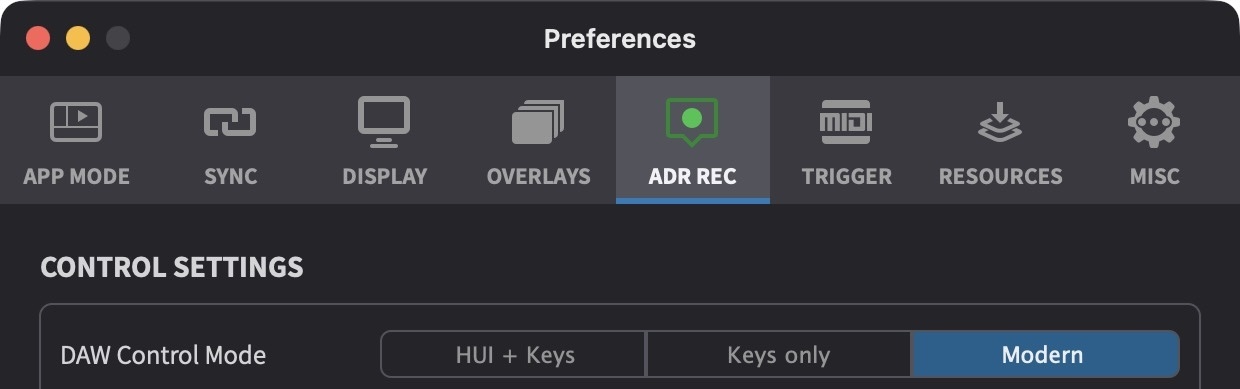
In Preferences / Settings → ADR REC, select Modern in the DAW Control Mode selection.
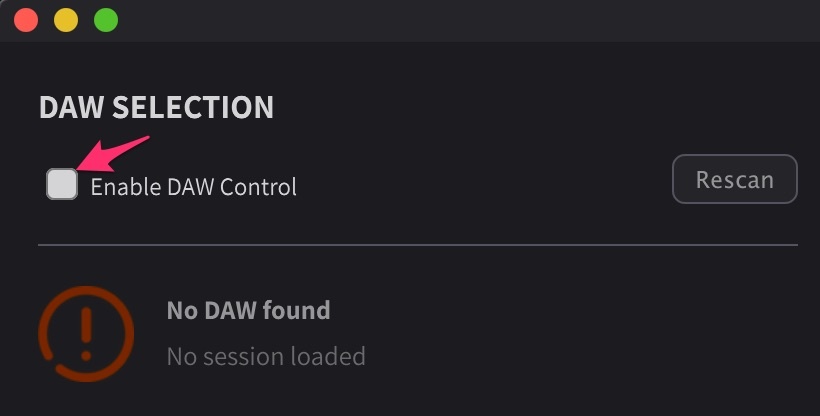
In the DAW tab, activate the Enable DAW Control option.
Modern mode timeline mirroring
When running Modern DAW Control Mode with Satellite Link and Timeline Range Edit Mode is selected (using the Edit Mode toggle switch in the Controller Bar), timeline selections are mirrored between Cue Pro and Pro Tools® - making navigation and cue review faster and more intuitive. To adjust this, go to Cue Pro menu → Preferences / Settings → ADR REC and set the Mirror Pro Tools timeline selection to Cue Pro preference. For information about the Edit Mode toggle and the difference between Timeline Range Mode and Target Event Mode, see the Adding and Editing Visual Events chapter.
Leave this preference off when Insertion Follows Playback in Pro Tools® is enabled to avoid losing the event selection after stopping playback/record.
When enabled, Cue Pro follows the timeline selection set in Pro Tools®, keeping both applications aligned. However, event selections will be lost after playing or recording an event as the timeline position will be updated from Pro Tools®.
Cue Pro is now fully set up to control the Pro Tools® session.
Accessibility API Setup (Pre–Pro Tools 2025.6 Only)
Use this setup only when running Pro Tools® versions earlier than 2025.6. The legacy Key Commands Only and HUI & Key Commands modes rely on sending keystroke commands to Pro Tools®, which requires granting Cue Pro accessibility permissions in macOS.
In order for Cue Pro to be able to take control of a Pro Tools® session, it must first be enabled in the macOS built-in Accessibility interface.
First make sure that Pro Tools® is launched and has a session open.
Switch to the DAW tab in the tab view at the top left of the main window and in the first DAW Selection section, enable the tick-box next to Enable DAW Control.
A window will appear asking for Cue Pro to be allowed as a trusted application in System Preferences.
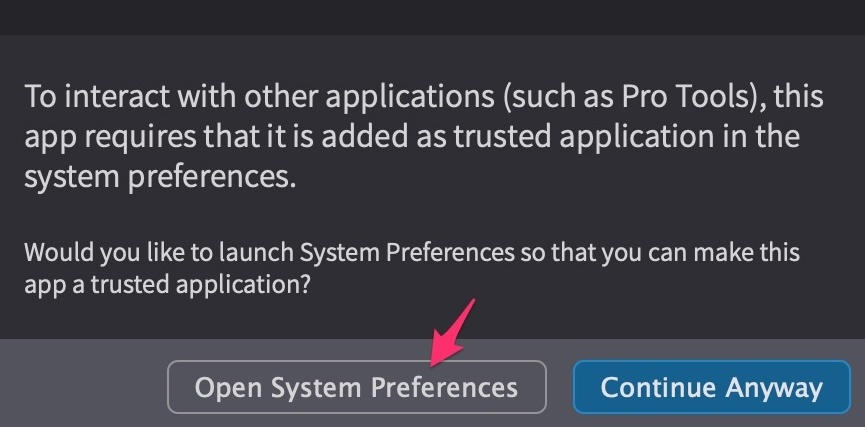
This window also appears when Cue Pro is launched with DAW Control enabled, but Accessibility has not been enabled. After some updates, this can also need re-adding.
Upon clicking the Open System Preferences button in the window, macOS will open the Accessibility settings. Depending on the macOS version, this shortcut may open the Accessibility page directly, or only part of the way (for example Privacy & Security or the general Privacy section). If the Accessibility list is not shown immediately, select Accessibility in the sidebar and then locate Cue Pro in the list. To manually access this window from scratch, go to: Apple → System Settings → Privacy & Security → Accessibility.
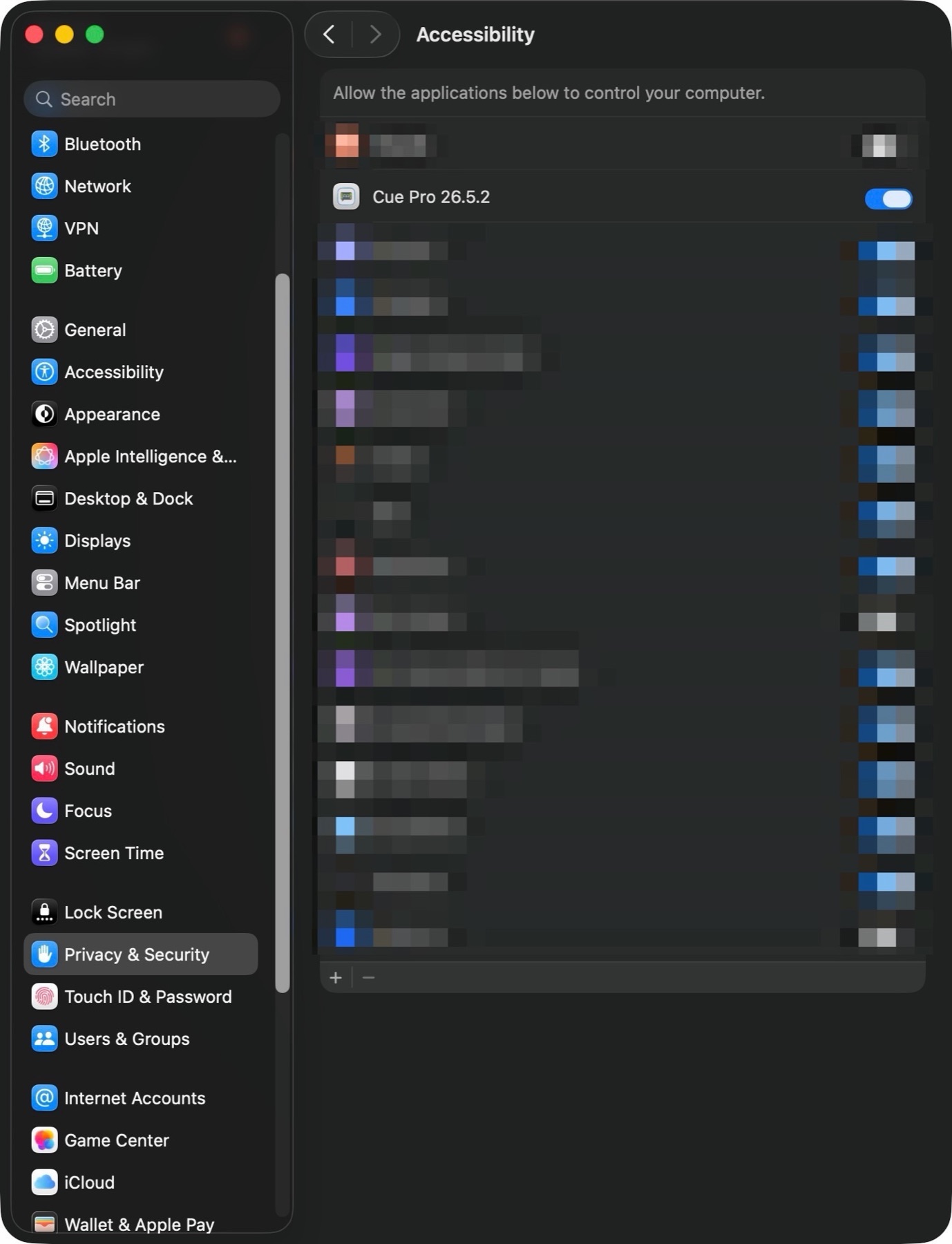
Locate Cue Pro in the list and enable the toggle. On older macOS versions, you may need to click a lock icon at the bottom left and enter the administrator password before making changes.
Cue Pro should now find the open Pro Tools® session in the DAW tab. It will display the application version of Pro Tools® and the name of the loaded session.
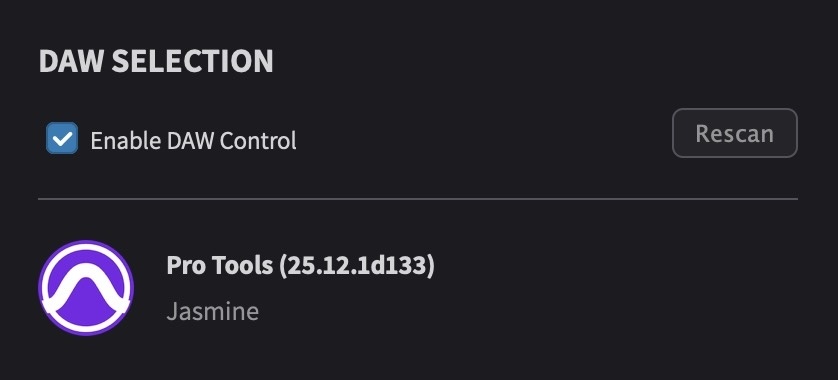
Note: Cue Pro requires Pro Tools® to be set to English. If Pro Tools® does not show up despite a session being loaded and the Edit window visible, set Pro Tools® to English in the application preferences.
Next, go to Preferences / Settings → ADR REC → CONTROL SETTINGS → DAW Control Mode and select the preferred communication protocol - between only Key Commands, or HUI & Key Commands.
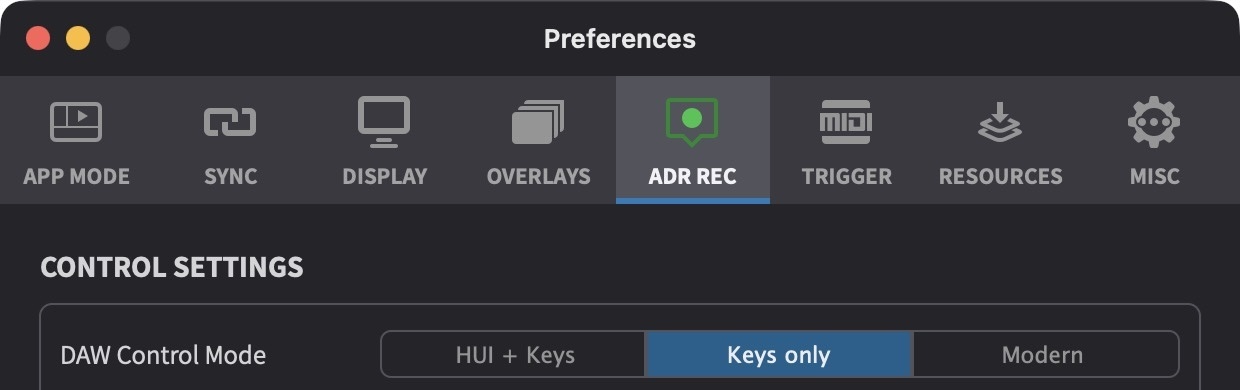
Generally, the Key Commands only option is preferable.
Note: In order to not break compatibility with legacy users who still use HUI for this, the option to use HUI as well has been kept - though this setup is no longer necessary. This setting is not related to using HUI with MTC & MMC for Pro Tools® DAW Sync. It is possible to run HUI for DAW Sync and DAW Control simultaneously, so long as enough HUI ports are enabled in Pro Tools® → Setup → Peripherals.
If the HUI & Key Commands option is chosen, follow the directions in the following sections to enable HUI.
If the DAW Control Mode is set to Key Commands Only, then setup is complete - skip to the next chapter.
Cue Pro HUI Setup
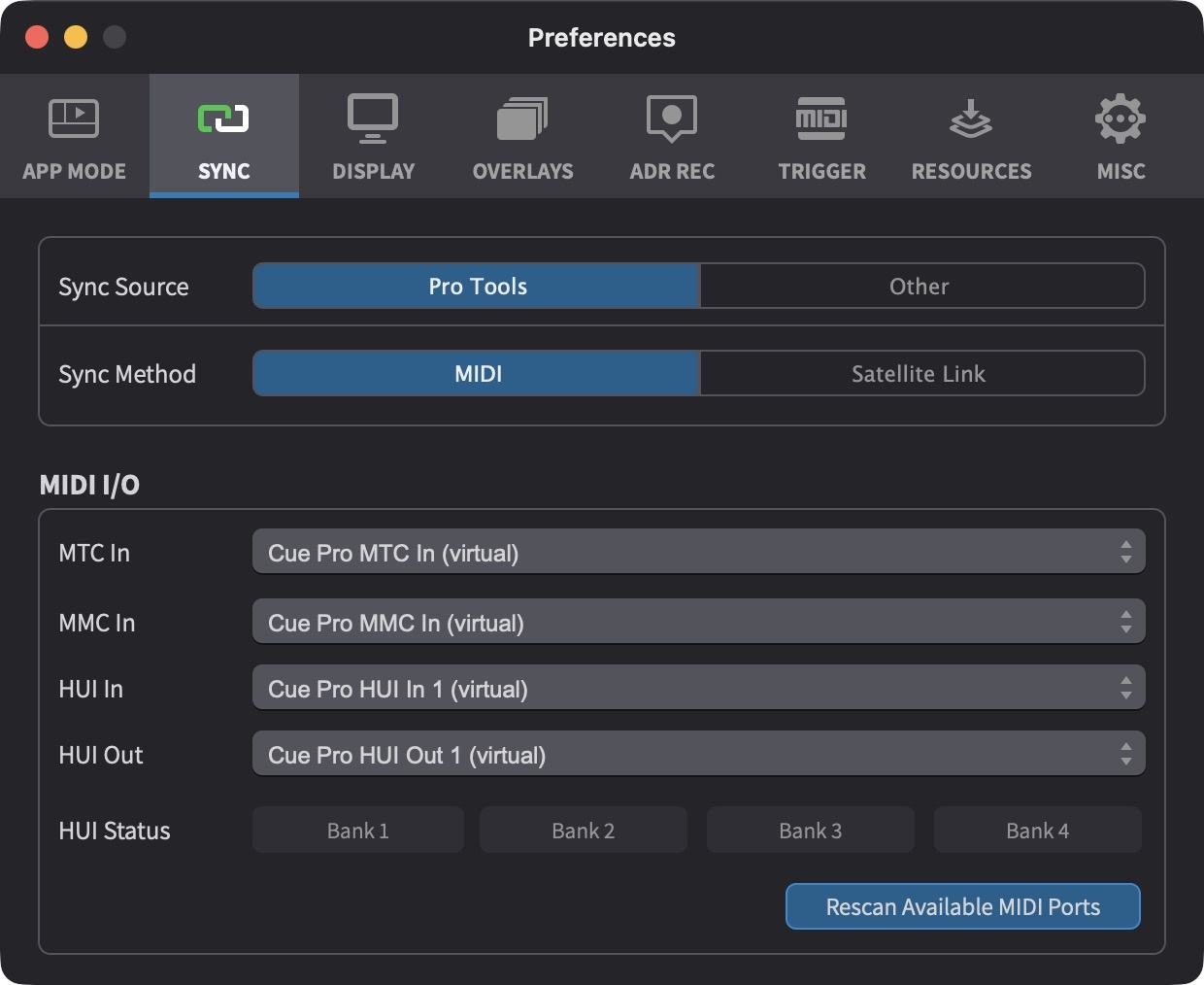
In the SYNC tab in the Preferences / Settings window in Cue Pro, check that the HUI In and HUI Out virtual ports are set to the default values Cue Pro HUI In 1 (virtual) and Cue Pro HUI Out 1 (virtual) respectively.
Pro Tools HUI Setup
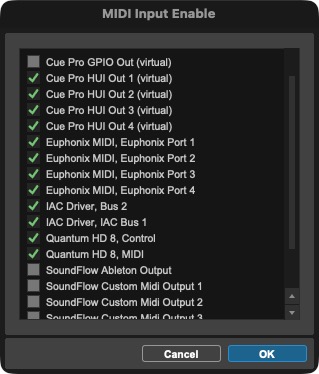
Launch Pro Tools®, go to Setup → MIDI → MIDI Input Devices.
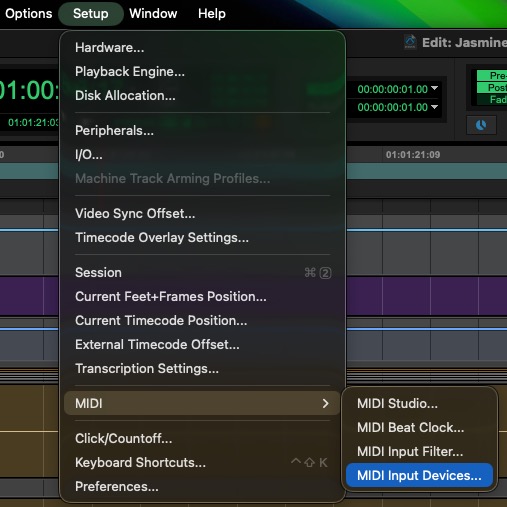
Make sure that the four Cue Pro HUI Out 1-4 (virtual) MIDI Inputs are enabled. New MIDI Inputs are disabled by Pro Tools® by default until they are manually activated.
Next go to Setup → Peripherals → MIDI Controllers tab.
In the first (or next available) row, under the Type column, select HUI. In the adjacent Receive From column, select Predefined → Cue Pro HUI Out 1 (virtual). In the adjacent Send To column, select Predefined → Cue Pro HUI In 1 (virtual). If HUI has already been set up for DAW Sync, use the next available HUI column and associated ports, e.g. Cue Pro HUI Out 2 (virtual) and Cue Pro HUI In 2 (virtual).
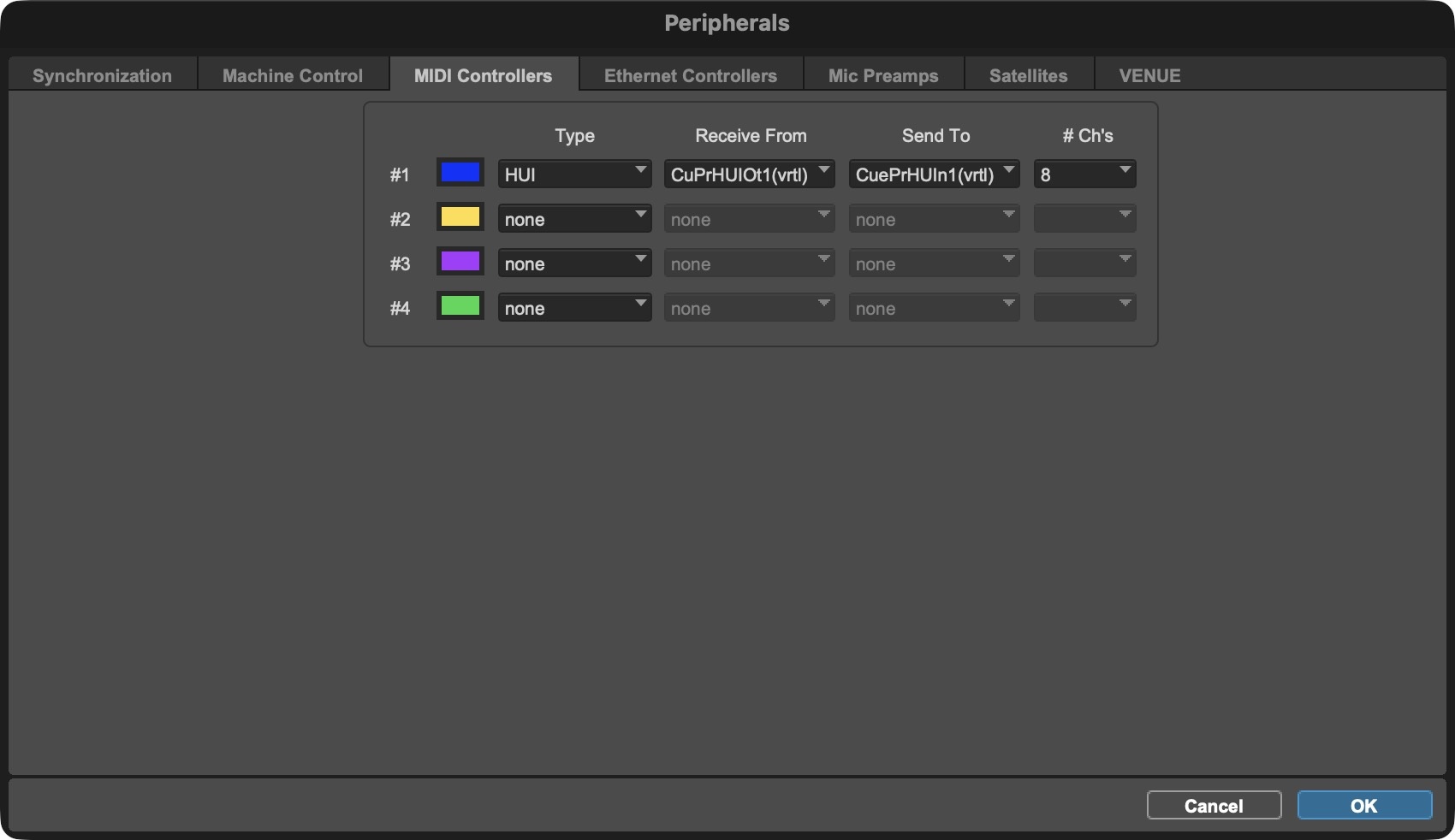
This process can then be repeated up to four times to accommodate bigger sessions.
Click OK once done.