
Region Name Overlay
Overview
The Region Name overlay displays the name of the video region currently under the playhead as a text overlay on the video output. On timelines that contain more than one video file — separate reels, updated picture versions, or alternate cuts placed end to end — the overlay provides constant confirmation of which file is on screen without needing to look at the timeline.
The overlay follows the playhead: whenever playback crosses into a different video region, the displayed name updates automatically. The name shown is the region name, which can be renamed in the timeline — it is not necessarily the original file name.
When the video output shows more than one source at once — picture-in-picture or a side-by-side comparison — each section displays the name of its own region, making it immediately clear which version is which.
Like the Timecode overlay, the Region Name overlay is not event-based and does not appear on a Visual Events track — it remains visible at all times when enabled.
Enabling the Region Name Overlay
The Device List in Preferences / Settings → DISPLAY tab shows all available video output devices — including hardware devices, the Fullscreen Video Device, and the Internal Video Device — each with independent overlay controls. Expand the settings for a device by clicking the grey arrow to the left of the device name. Each device offers a Region Name checkbox alongside the other overlay options, allowing the overlay to be shown on the operator's monitor while keeping a client-facing or recording output clean.
Region Name Settings
All Region Name overlay settings are configured in Preferences / Settings → OVERLAYS → Region Name.
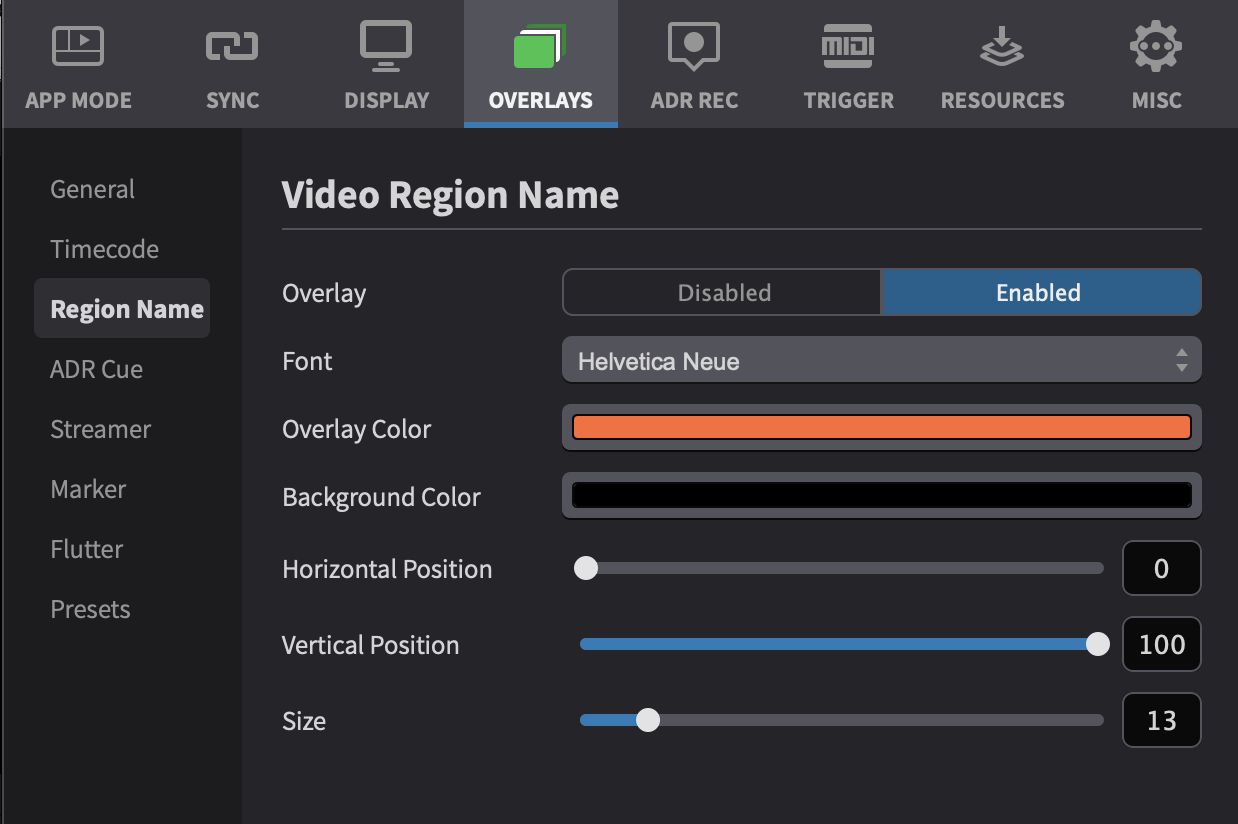
The Overlay toggle enables or disables the Region Name overlay. It is disabled by default.
Font sets the typeface used for the region name text. Overlay Color sets the colour of the text. Background Color sets the colour of the box behind the text — semi-transparent by default so the picture remains visible through it.
Horizontal Position and Vertical Position place the overlay anywhere within the picture. Size scales the overlay relative to the picture size.
When a setting is adjusted, a temporary preview of the overlay is automatically displayed on all available video devices for a few seconds, allowing the overlay to be positioned and styled without starting playback.
Overlay appearance settings apply globally — they are shared across all video devices, projects, and timelines. Region Name settings are included in display preference presets, which can be saved and managed through the Presets page in the OVERLAYS sidebar — see the Timecode Overlays chapter for details on working with presets.