
Licensing
Introduction
Video Sync offers two licensing models: perpetual licenses and subscription licenses. Both models authorise the software on one computer at a time, but they differ in cost structure, portability, internet requirements, and how easily a license can be moved between locations.
This chapter covers how to choose the right license type, how to activate and manage each type, and how to work across multiple computers or studios.
Choosing the Right License Type
Deciding between a perpetual license and a subscription depends on how and where the software will be used.
Perpetual licenses are a one-time purchase and use the industry-standard PACE iLok licensing system. They are well suited for users who need offline access, work at multiple studios, or prefer a single upfront payment. A perpetual license can be stored on a physical iLok USB dongle - making it easy to carry between locations and use on any computer simply by plugging it in. Alternatively, PACE's iLok Cloud Sessions allow a perpetual license to be accessed from any internet-connected computer without carrying any hardware. Perpetual licenses do not require an internet connection when stored on an iLok or activated directly on a computer.
Subscription licenses use Non-Lethal Applications' own licensing system and are available as month-to-month or annual plans. They offer a lower entry cost compared to a perpetual license but require an active internet connection each time the software is launched. Subscription licenses cannot be stored on an iLok or used with iLok Cloud Sessions. Moving a subscription between computers requires manually revoking the license on one machine before activating it on another.
The table below summarises the key differences:
| PERPETUAL LICENSE | SUBSCRIPTION LICENSE | |
|---|---|---|
| Cost | One-time purchase | Monthly payments |
| Licensing system | PACE / iLok | NLA (serial number) |
| Offline use | Yes (iLok or computer activation) | No - internet required on each launch |
| iLok compatible | Yes | No |
| iLok Cloud Sessions | Yes | No |
| Moving between computers | Plug in iLok, or open Cloud Session, or deactivate/reactivate | Revoke and reactivate (internet required on both) |
| Cancellation | N/A - owned permanently | Month-to-month: cancel any time. Annual: cancel only after 12 months |
License Usage - One Computer at a Time
Regardless of the license type, each license authorises one computer at a time. The software can be installed on as many computers as needed, but only one of those installations can run as a licensed copy at any given time. Launching the software on an unlicensed computer will start it in demo mode.
For users who regularly work at more than one location - for example, a home studio and an external facility - a perpetual license stored on a physical iLok is often the most practical option. The iLok can hold a large number of licenses from different manufacturers, so it is easy to carry an entire set of software authorisations on a single USB device. Simply plug it in at whatever studio is being used, and unplug it when done. No internet connection, no deactivation steps, no waiting.
iLok Cloud Sessions offer similar flexibility for users who are happy to be online - open a Cloud Session from any internet-connected computer, and if a session is already active elsewhere, iLok License Manager will offer to close it and start a new one. See the section Using iLok Cloud Sessions below.
With a subscription license, switching between computers requires revoking the license on the current machine first, then activating it on the destination machine. Both steps require an internet connection. See the section Moving a Subscription License to another Computer below.
Subscription Licenses
Activating a Subscription License
Subscription licenses use Non-Lethal Applications' own licensing system. PACE iLok License Manager is not required and will not work with subscription licenses. Subscriptions cannot be stored on an iLok.
When signing up for a subscription, a serial number will be received via email after purchase - this is used to activate Video Sync directly.
When launching Video Sync with no perpetual license present, the Video Sync Activation window will be presented. Click the Enter Serial Number button and enter the serial number.
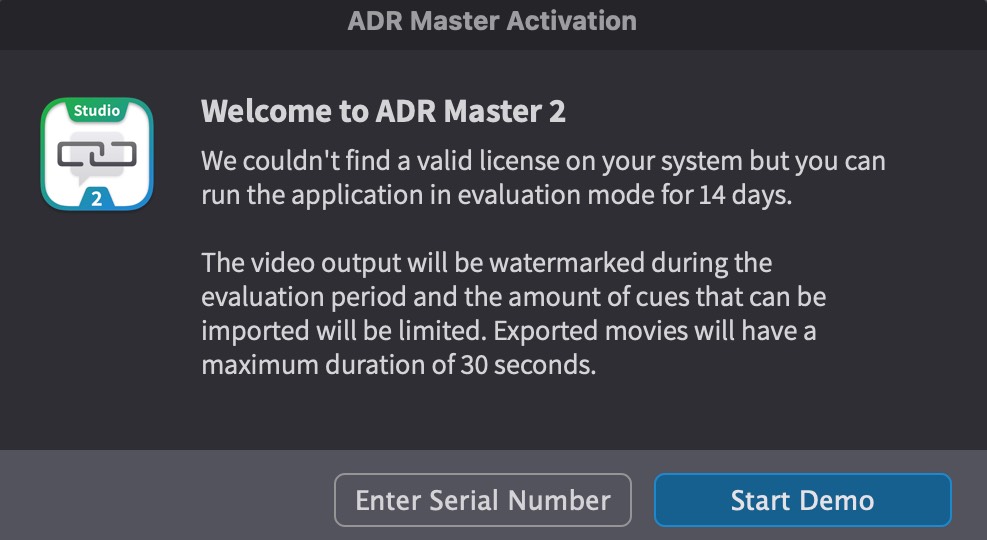
It is recommended to use Copy & Paste to avoid typos.
Click Activate to start the license activation procedure. This step requires an active internet connection.
Internet Requirements
A subscription license requires an active internet connection each time Video Sync is launched. The license is verified against the NLA server on launch, and must be refreshed at least once per month. If no internet connection is available, the license will expire and Video Sync will return to demo mode.
Note: For users who need to work offline, a perpetual license is recommended. Perpetual licenses stored on an iLok USB dongle or activated directly on a computer do not require an internet connection. See the Perpetual Licenses section below.
Moving a Subscription License to another Computer
A subscription license can be moved between computers at any time. This requires revoking the license on the current computer first, then activating it on the destination computer. An active internet connection is required on both machines.
To revoke a license, open the Licenses window (accessible through Video Sync → Licenses) and click the Revoke button. This will de-authorise the current computer and the software will return to demo mode.
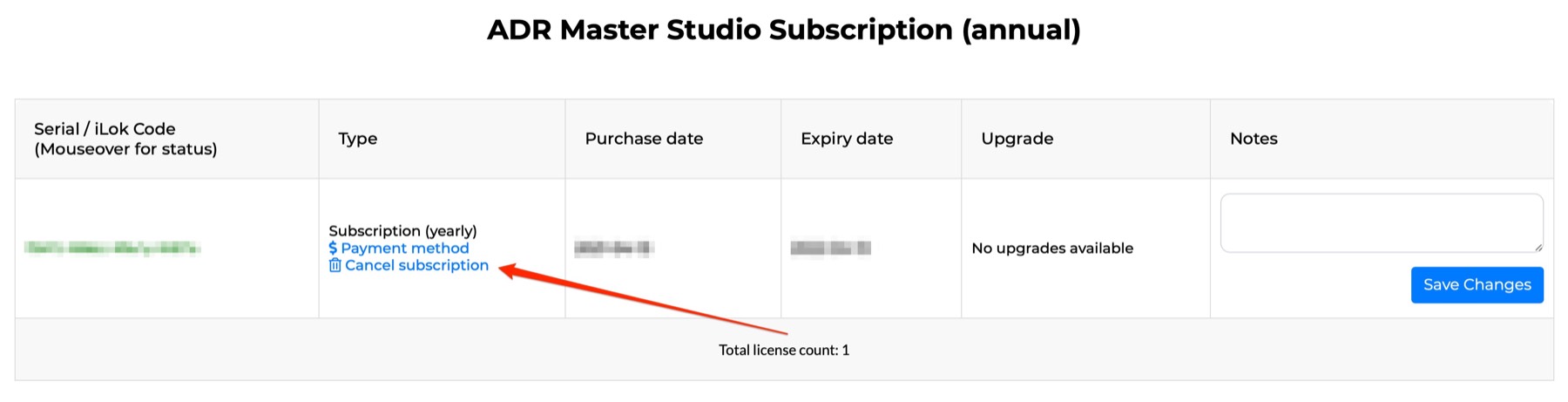
On the destination computer, launch Video Sync and activate the license using the same serial number, following the activation steps described above.
Note: If a license needs to be revoked but the original computer is not accessible - for example, due to hardware failure - contact support@non-lethal-applications.com for assistance with resetting the license.
Cancelling a Subscription
Subscriptions are available in two formats: month-to-month and annual.
Month-to-month subscriptions have a slightly higher monthly fee but offer flexibility - they can be cancelled at any time.
Annual subscriptions are a 12-month commitment at a reduced monthly rate. An annual subscription cannot be cancelled before the end of the subscription year. This commitment is agreed to upon sign-up. For short-term or flexible needs, a month-to-month subscription is the better option.
Note: Subscription payments do not accumulate toward the purchase of a perpetual license. These are separate licensing models.
To cancel a subscription, log in at My Account on the Non-Lethal Applications website. The My Licenses page will be shown. Find the subscription license in the license list and click the Cancel subscription button.
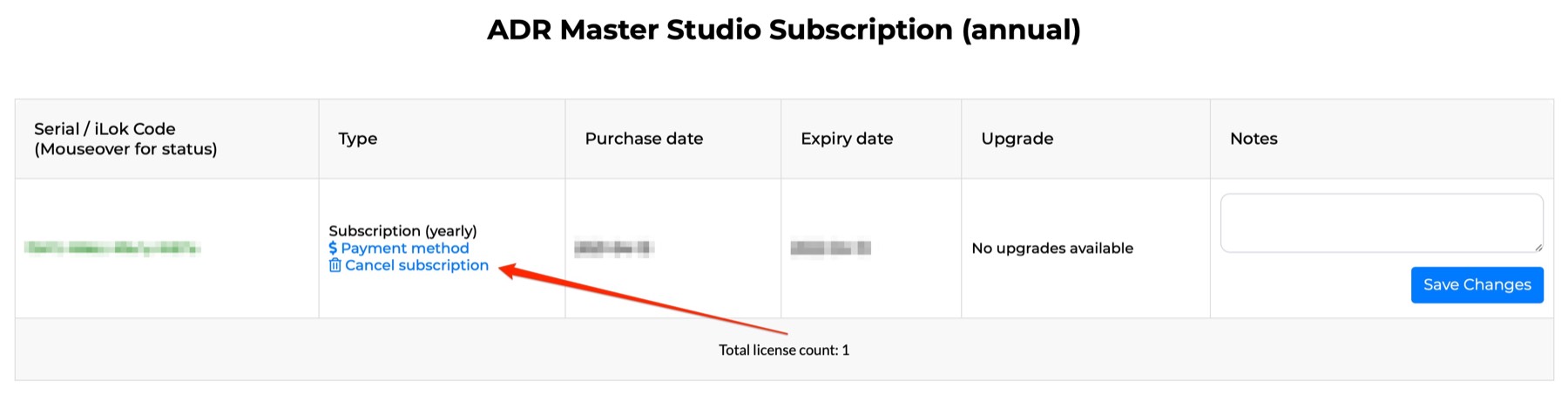
A confirmation prompt will appear. Once confirmed, the page will reload and the My Licenses page will show the effective cancellation date.
Perpetual Licenses
Benefits of Using iLok
Video Sync uses the industry-leading PACE software protection platform for perpetual license activation. Within PACE's iLok License Manager app, it is possible to authorise either the computer or an iLok (2nd or 3rd generation). Video Sync also supports PACE's Cloud Sessions and Network Licenses via iLok License Manager.
An iLok is a USB dongle distributed by PACE Anti-Piracy that can hold a large number of software licenses from different manufacturers (up to 1,500 on the current iLok 3, available in both USB-A and USB-C). This makes it easy to carry an entire set of software authorisations on a single device - plug it in at whatever studio is being used, and unplug it when done.
If an iLok is not already available, there is no need to purchase one just to license Video Sync. Using iLok License Manager, it is also possible to authorise the software directly to a computer, or to use PACE's Cloud Sessions.
Pre-requisites for Activation - iLok & NLA Accounts
If an iLok account does not already exist, go to www.iLok.com to create one.
Download and install iLok License Manager. Launch it, and when prompted, log in with the iLok account details.
To authorise an iLok, connect it and - if not already done - add it to the iLok account (refer to PACE's iLok instructions to do this).
If a Non-Lethal Applications account does not already exist, create one at:
https://non-lethal-applications.com/register
Purchasing a Perpetual License
There are two options for purchasing a perpetual license for Video Sync:
- Directly from the online Non-Lethal Applications Store
- Through a preferred Dealer or Reseller
To purchase a license directly through the online store, visit the product page:
https://non-lethal-applications.com/video-sync-6
Scroll down to the Purchase options and click on the BUY NOW button. In the purchase window that appears, enter the requested information and payment details.
Once the process is complete, an email with an iLok Activation Code will be received.
To purchase a license through a 3rd party reseller, a Pre-Activation Code will be provided after purchase. Follow the instructions in the following section on how to activate these. A NLA pre-activation code is like a voucher which generates a new PACE Activation code.
Activating an NLA Pre-Activation Code / Redeeming a PACE Activation Code
Log in to the NLA account on the top right at:
https://non-lethal-applications.com
The My Licenses page will be displayed.
Scroll to the bottom of the page, and click on the Activate code button.
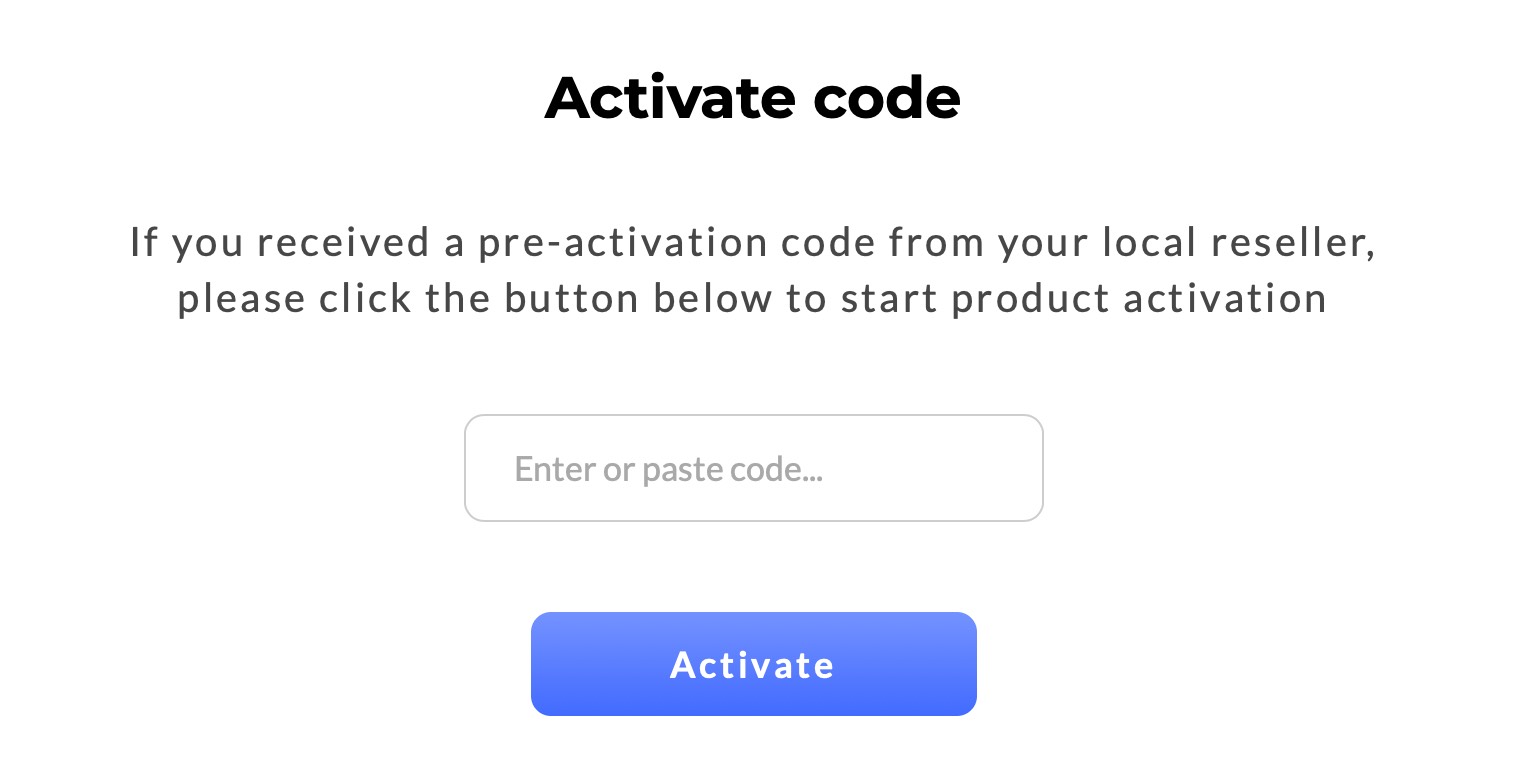
Enter or paste the NLA pre-activation code that was sent via email in the window that appears and hit the Activate button.
An email with the PACE iLok Activation Code will then be received. Copy this. A PACE activation code is like a voucher which allows the license to be added to a PACE account.
Activating the PACE Activation Code
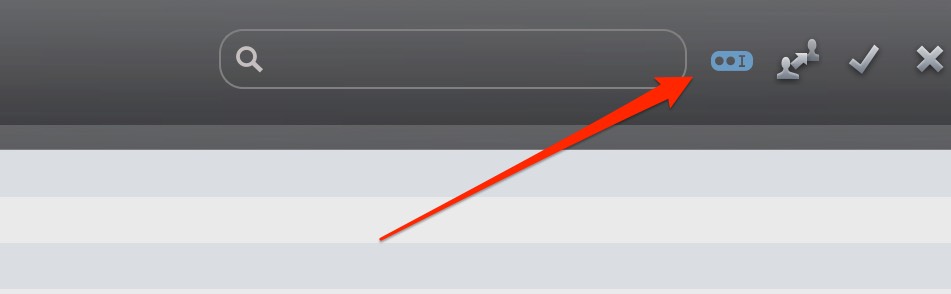
To activate the license using the PACE Activation Code, open iLok License Manager, log in to the account, and enter (or copy-paste) the activation code by clicking the Redeem Activation Code button at the top right of the main window. Then click the Next button.
iLok Cloud Automatic Mode
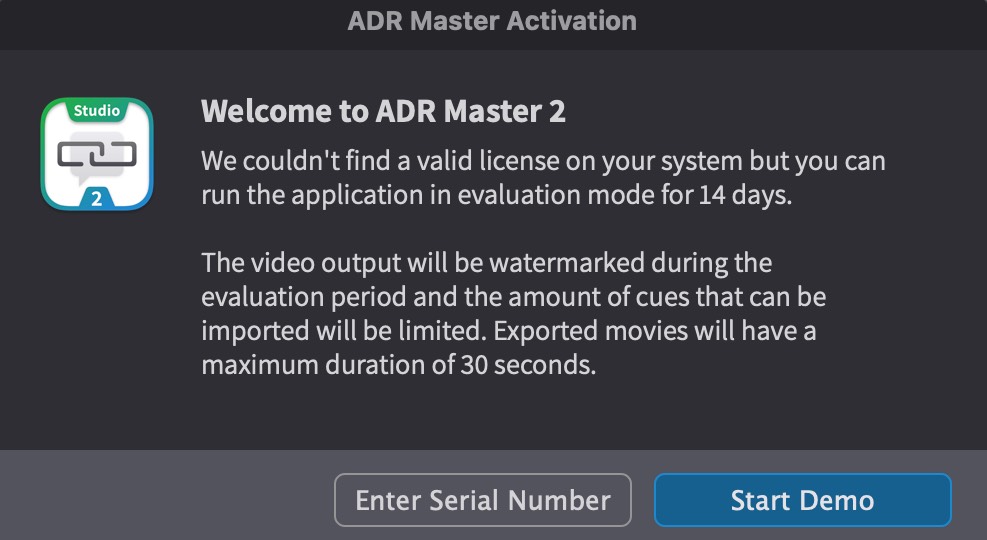
iLok License Manager's iLok Cloud can operate in one of two modes: Automatic Mode and Managed Mode. In Automatic Mode, all cloud-enabled licenses are automatically activated to the iLok Cloud when a Cloud Session is opened. This is a common source of confusion for new users — a license may have been redeemed successfully, but it ends up in the iLok Cloud rather than in the Available tab. Without a Cloud Session open on the machine, Video Sync cannot see the license and will present the Activation window as if no license exists.
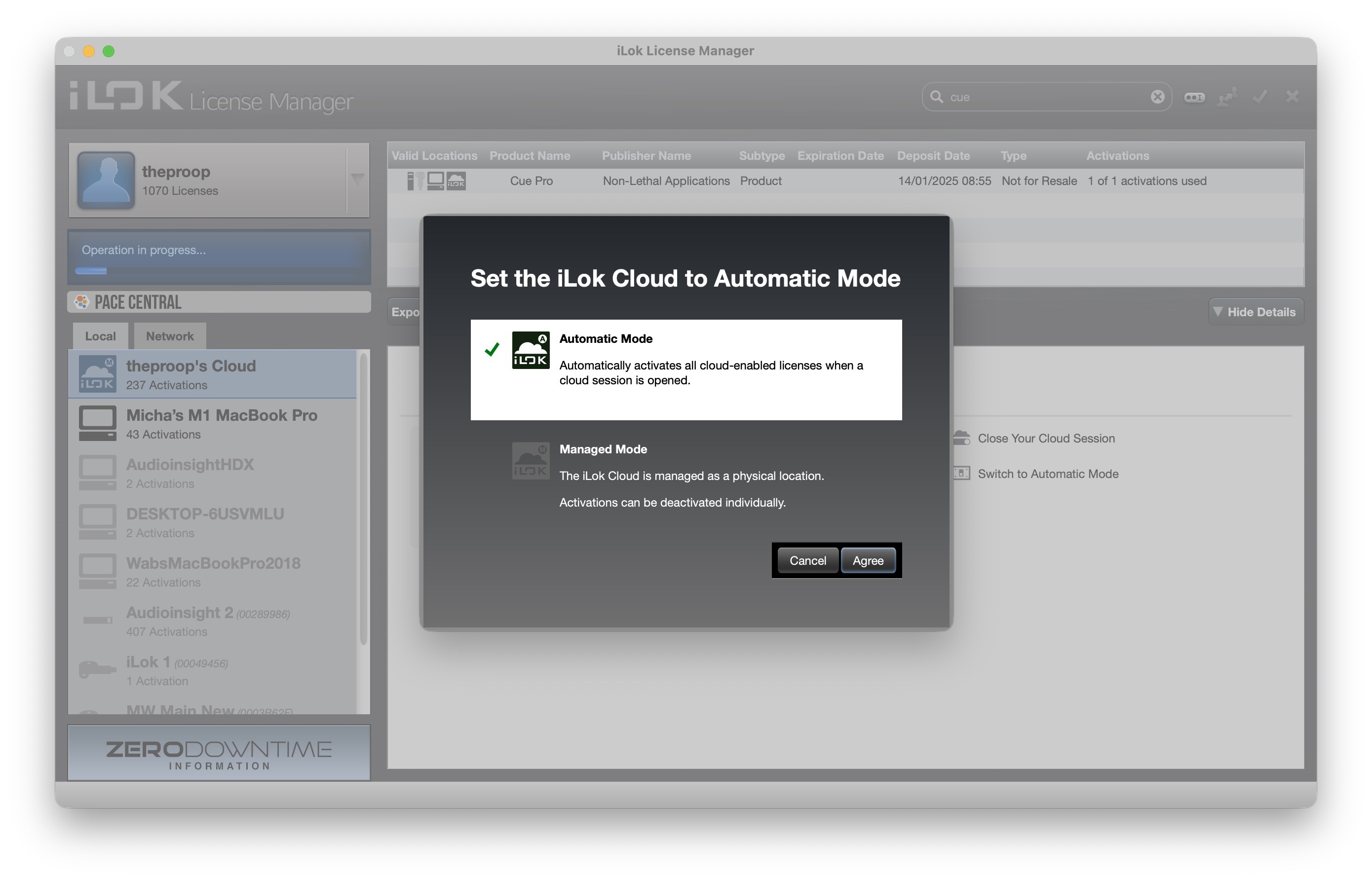
If a newly purchased license does not appear in the Available tab after redemption, check the Cloud section on the left-hand side of iLok License Manager. If the license is there, either open a Cloud Session to use it (see Using iLok Cloud Sessions below), or deactivate it from the Cloud and transfer it to a preferred location such as an iLok USB dongle or the local computer.
To prevent this from happening with future license deposits, switch the iLok Cloud to Managed Mode. Select the Cloud in the left-hand sidebar of iLok License Manager and click Switch to Managed Mode. In Managed Mode, the iLok Cloud is treated as a physical location where activations can be managed individually, giving full control over where each license is stored.
Authorising / Transferring the PACE License to an iLok or Computer
The final step in the process is to choose where to store the PACE authorisation. There are three options:
- iLok USB dongle - Ideal for users who work at multiple locations. Carry the license between studios on a single device. No internet connection required.
- Computer - Activates the license directly on a specific machine. No internet connection required after activation.
- iLok Cloud - Access the license from any internet-connected computer via a Cloud Session. See the section Using iLok Cloud Sessions below.
Still within iLok License Manager, click on the Available tab at the top, and find the Video Sync or Video Sync Pro authorisation in the list.
Authorisations can also be found using the search bar at the top right.
To move the authorisation to the computer, or one of the inserted iLoks shown on the left, simply drag the authorisation by clicking on the name and dragging it to the chosen authorisation destination on the left.
Alternatively, control-click the chosen authorisation, and in the list that appears, choose the activate option. A window will appear offering the possible authorisation destinations. Select the desired destination and click the Activate button.
To check that the authorisation transferred correctly, select the chosen authorised destination on the left, and see that the authorisation is listed.
That's it - the setup is complete. Video Sync can now be launched and will run authorised.
Note: Where there are multiple Video Sync licenses present on an iLok, or on a system (for example Video Sync and Video Sync Pro), the highest available license is used.
Using iLok Cloud Sessions
PACE's iLok Cloud Sessions provide a convenient way to use a perpetual license across multiple computers without needing a physical iLok or manually transferring the license each time. This is particularly useful for users who work at more than one studio or facility where an internet connection is available.
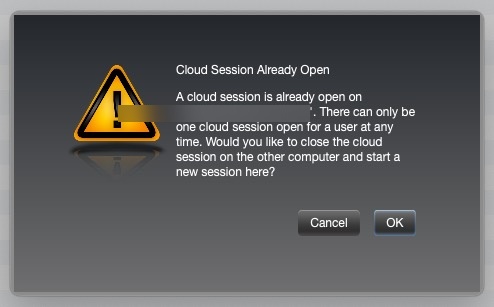
With a Cloud Session, the license is stored in the iLok cloud account rather than on a specific computer or iLok. To use the software, open a Cloud Session from iLok License Manager by going to File → Open Your Cloud Session. Only one Cloud Session can be active per iLok account at a time. If a session is already open on another computer, iLok License Manager will display a prompt identifying the computer where the session is currently active, and ask whether to close that session and open a new one on the current computer. Click OK to proceed.
To set up a Cloud Session, open iLok License Manager and ensure the license is in the account's Available list (deactivate it from its current location first if needed). Then, transfer the license to the Cloud destination shown on the left-hand side of iLok License Manager. Once the license is in the cloud, select it and choose Open Cloud Session to begin using it.
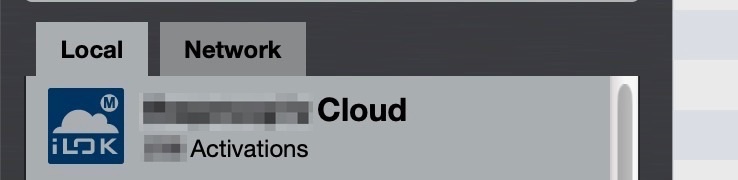
Note: An active internet connection is required to open and maintain a Cloud Session. If the connection is lost, the session will remain active for a short grace period before the license is released. For guaranteed offline use, activating the license on a physical iLok or directly on the computer is recommended instead.
Moving a PACE License
To move a PACE authorisation between two iLoks or computers, deactivate the PACE license within iLok License Manager by finding it in the list, control-clicking it, and choosing Deactivate from the list that appears.
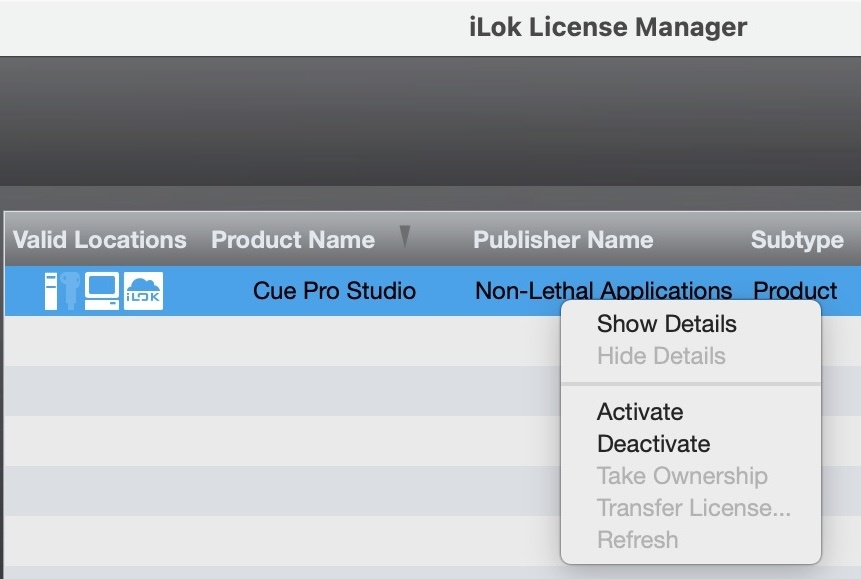
This will de-authorise the current iLok or computer and return the asset to the iLok account's Available authorisations list. From there it can be moved to another destination as per the instructions in the previous section, Authorising / Transferring the PACE License to an iLok or Computer.
Note: When an iLok Cloud Session is being used instead, manual deactivation is not necessary. A new Cloud Session can be opened on the desired computer via File → Open Your Cloud Session in iLok License Manager. If the session is still open on another computer, a prompt will appear offering to close it and open a new session on the current computer.
Working Offline
One of the key advantages of a perpetual license is the ability to work without an internet connection.
When a license is stored on a physical iLok USB dongle or activated directly on a computer, no internet connection is required to launch or use Video Sync. The license is verified locally.
When a license is accessed via an iLok Cloud Session, an internet connection is required to open the session. Once open, a brief loss of connectivity is tolerated, but extended offline use is not possible with Cloud Sessions.
Note: Subscription licenses always require an internet connection to verify the license on launch. For users who need reliable offline access, a perpetual license with iLok or computer activation is recommended.
Zero Downtime (ZDT) & Theft & Loss Coverage (TLC)
PACE offers Zero Downtime (ZDT) - a paid annual coverage plan that acts as insurance for iLok USB dongles. If a covered iLok is lost, stolen, or broken, PACE will issue temporary replacement licenses immediately, allowing work to continue while a replacement iLok is shipped.
ZDT includes Theft & Loss Coverage (TLC) - a feature that enables PACE to issue permanent replacement licenses for a lost or stolen iLok without needing to contact each individual software developer. TLC is included free with a ZDT subscription but must be enabled before the iLok is lost or stolen.
However, when TLC is enabled, the iLok must go online at least once every 90 days for a refresh operation. PACE describe this requirement as follows:
"If the TLC option is enabled, the iLok will need to be seen by our server at least once every 90 days for a Refresh operation. This Refresh enables the licenses to continue working for an additional 90 days. If the iLok is not seen by our server by the end of the Refresh period, the licenses on it will cease to authorize the software. Using iLok License Manager to do the Refresh operation will immediately reinstate the licenses." - PACE
Note: The 90-day refresh requirement only applies to iLok USB dongles with TLC enabled. Licenses activated directly on a computer, or on an iLok without ZDT/TLC, do not require periodic online verification. For environments where the computer must remain completely disconnected from the internet for extended periods, either avoid enabling TLC on the iLok, or plan to connect briefly every 90 days to complete the refresh.
Important: Synchronising an iLok in iLok License Manager is not the same as refreshing TLC. Synchronisation updates the iLok's system information and firmware. A TLC refresh is a separate verification process that confirms licenses are still eligible for Theft & Loss Coverage. Both may happen when iLok License Manager goes online, but they serve different purposes.
Note: ZDT and TLC are managed through the PACE website.
PACE Network Licenses
Video Sync supports PACE Network Licenses (also known as floating licenses), which allow multiple users within a local area network (LAN) to share a limited number of software licenses concurrently. This licensing model is ideal for studios, educational institutions, and facilities where multiple users need access to Video Sync at different times.
Important: PACE Network Licenses are not available through the online store. Please contact Non-Lethal Applications directly at support@non-lethal-applications.com to order network licenses.
How Network Licenses Work
Network licenses are managed by a centralised license server running on a machine within the network. When Video Sync is launched, the software checks out a license from the server. When the application is closed, the license is returned to the server and becomes available for other users.
Setting Up Network Licenses
Setting up network licenses requires a server license and an iLok to store the licenses. Server licenses can be purchased from Non-Lethal Applications or from any other vendor that supplies network licenses.
To set up network licenses, first obtain a Server License. If one is not already available, contact support@non-lethal-applications.com to order. An iLok USB device is also required to store the licenses on the server.
Next, install the iLok License Server software on a dedicated machine within the network. This server will manage the distribution of licenses to client machines.
Activate the network licenses on the iLok License Server using the PACE Activation Code. Network licenses must be stored on an iLok USB device connected to the server.
Finally, ensure all client machines running Video Sync have the PACE License Support software installed and are configured to connect to the license server. The software will automatically check out a license when launched and return it when closed.
Note: Network licenses require all machines to be on the same local network and able to communicate with the license server. For detailed setup instructions, refer to PACE's iLok License Server documentation or contact the Non-Lethal Applications support team.
Upgrading
To upgrade any licenses, log into the NLA account and go to My Account → My Licenses to see what upgrade possibilities and pricing options are available by clicking on the Upgrade tab next to one of the existing licenses.
Upgrading will require the license being upgraded from to be surrendered.
Click on the chosen upgrade path and follow the payment options. Once the payment has been processed, another iLok Activation Code will be received via email.
Note: Unlike the initial iLok Activation Code received, this special code contains the information that an upgrade is being performed from another license, and that surrendering this other license is required first.
Open iLok License Manager. As with the initial code activation, use the Redeem Activation Code option and paste the code received via email.
A prompt will appear to select the license to surrender:
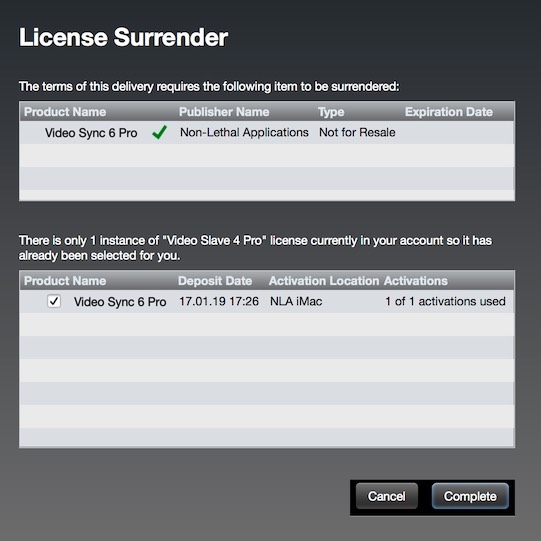
Once the selection is confirmed, the new license will be added to the list of licenses. Proceed by transferring the license to an iLok, a computer, or using PACE's cloud licensing features.
When upgrading from Video Sync to Video Sync Pro, separate software does not need to be installed. Just launch the existing software and the new features will be enabled.
Troubleshooting
If a perpetual license activation code is not accepted in the Video Sync Activation window:
- The Video Sync Activation window that appears on launch is only for subscription serial numbers. Perpetual license activation codes (PACE iLok codes) cannot be entered here - they must be redeemed through iLok License Manager instead. Open iLok License Manager, click the Redeem Activation Code button at the top right, and paste the activation code there. Once redeemed, the license will appear in the Available list and can then be transferred to an iLok, a computer, or the cloud. See the section Activating the PACE Activation Code above.
If a license cannot be found after redeeming an activation code in iLok License Manager:
- The most common cause is iLok License Manager's Automatic Mode for iLok Cloud. When enabled, newly deposited licenses are automatically activated to the Cloud instead of appearing in the Available tab — so the license exists, but it is not where expected. Check the Cloud section on the left-hand side of iLok License Manager. If the license is there, either open a Cloud Session to use it, or deactivate it from the Cloud and transfer it to a preferred location. See the section iLok Cloud Automatic Mode above for details on checking and disabling this setting.
- Check whether the license was activated to a different iLok than expected. If multiple iLoks are registered to the account, click on each one in iLok License Manager to see where the license ended up.
If Video Sync is suddenly asking for a license even though it was working before:
- If using an iLok USB dongle, check that the iLok is properly connected to the computer. The LED indicator on the iLok should be lit when it is receiving power.
- Try removing the iLok and inserting it into a different USB port on the computer.
- If connected via a USB hub, check that the hub has its own power supply. Unpowered hubs may not provide enough power for the iLok to function reliably.
- If connected via a USB hub, check that the iLok is firmly seated in the port and that its LED indicator is lit.
- If another USB device was recently connected to the same hub, try disconnecting it - the additional device may be exceeding the hub's power capacity.
- If problems persist with a USB hub, try connecting the iLok directly to the computer, or try a different hub - preferably one with its own power supply.
- If the iLok has TLC (Theft & Loss Coverage) enabled, the license requires an online refresh every 90 days. If more than 90 days have passed without the iLok being connected to a computer with internet access, the licenses will stop authorising until a refresh is performed in iLok License Manager. See the section Zero Downtime (ZDT) & Theft & Loss Coverage (TLC) above.
- When using an iLok Cloud Session, the session may have been closed - for example, if a Cloud Session was opened on another computer, or if the session expired due to a loss of internet connectivity. Open iLok License Manager and go to File → Open Your Cloud Session to reopen it.
- If using a subscription license, ensure the computer has an active internet connection. Subscription licenses are verified on each launch and must be refreshed at least once per month. If more than a month has passed without an internet connection, the license will have expired and Video Sync will return to demo mode.
If a subscription license needs to be moved but the original computer is not accessible:
- Always try to revoke the license from the current computer first (via Video Sync → Licenses → Revoke) before contacting support - this can be done quickly and avoids unnecessary delays.
- If the original computer is genuinely inaccessible - for example, due to hardware failure, theft, or being in another location - contact support@non-lethal-applications.com for assistance with resetting the license. Include the serial number and a brief explanation of why the license cannot be revoked normally.
If unsure whether an iLok is needed for a perpetual license:
- An iLok USB dongle is the most portable option and is recommended for users who work at multiple studios, but it is not required. A perpetual license can also be activated directly on a computer or used via iLok Cloud Sessions. All three options are managed through iLok License Manager. See the section Authorising / Transferring the PACE License to an iLok or Computer above.
If the software needs to work offline:
- Perpetual licenses stored on a physical iLok or activated directly on a computer work fully offline - no internet connection is required at any point after initial activation. Perpetual licenses accessed via iLok Cloud Sessions require an internet connection to open and maintain the session. Subscription licenses require an internet connection each time the software is launched. See the section Working Offline above for full details.
If working in a studio where internet access is restricted or unavailable due to security protocols:
- A perpetual license stored on a physical iLok USB dongle or activated directly on the computer does not require any internet connection to run. After the initial one-time activation (which does require internet), the software will run entirely offline with no further connectivity needed. This makes the iLok dongle ideal for secure or air-gapped studio environments. The initial activation can be performed on a different computer that has internet access and access to the iLok account login credentials - once the license has been transferred to the iLok, simply move the iLok to the studio computer.
- The only exception is if TLC (Theft & Loss Coverage) is enabled on the iLok - this requires an online refresh every 90 days. If the studio environment does not permit any internet access, consider disabling TLC or periodically connecting the iLok to an internet-connected computer outside the studio to perform the refresh.
- iLok Cloud Sessions and subscription licenses are not suitable for environments without internet access, as both require an active connection during use.
If an annual subscription needs to be cancelled before the 12-month period is up:
- Annual subscriptions are a 12-month commitment. It is not possible to cancel partway through and stop being charged for the remaining months. If the subscription is cancelled, it will remain active and charges will continue until the 12-month period ends. At that point, the subscription will simply not renew. If there is a genuinely exceptional reason why an early cancellation is needed, please contact support@non-lethal-applications.com to discuss.
If an annual subscription needs to be converted to a monthly subscription:
- It is not possible to convert an annual subscription to a monthly subscription while the annual term is still active. To switch, cancel the annual subscription now. When it expires at the end of the 12-month period, purchase a new monthly subscription.
If a monthly subscription needs to be converted to an annual subscription:
- Cancel the monthly subscription. When it expires at the end of the current billing period, purchase a new annual subscription to take advantage of the lower annual rate.
If looking for a rent-to-own scheme where subscription payments count towards a perpetual license:
- This is not available. Subscription and perpetual licenses are entirely separate products. Subscription payments do not accumulate towards the cost of a perpetual license, and there is no trade-in or credit scheme.
If looking to convert a subscription to a perpetual license at a discounted rate:
- Subscription payments cannot be credited towards a perpetual license purchase. The two license types are independent. A perpetual license can be purchased at any time from the online store, but it will be at the standard price regardless of any previous subscription payments.
If a subscription license needs to be transferred to an iLok:
- Subscription licenses cannot be used with iLok. Subscription licenses use a separate authorisation system managed through the application's own licensing menu (Video Sync → Licenses). Only perpetual licenses use the PACE/iLok system. If portability between studios is important, a perpetual license with an iLok USB dongle is the recommended option.
If licensing issues persist after following these steps, please contact support@non-lethal-applications.com.